
Updating your graphics card driver is one of the simplest ways to keep your games running well, fix small glitches, and get the best performance from your GPU. A driver is the software that lets Windows talk to your graphics card. When it is out of date, you can run into crashes, low frame rates, or new games that will not start at all. The good news is that learning how to update GPU drivers safely Nvidia AMD Intel is not hard, and it takes only a few minutes once you know the steps. In this guide, you will learn how to update your driver the safe way, how to check that it worked, and what to do if something goes wrong after the update.
Why Updating Your GPU Driver Matters
Graphics card makers release new drivers often. Each release can fix bugs, add support for new games, and improve how well your card runs. When a big game comes out, Nvidia, AMD, and Intel usually release a driver on the same day that is tuned for that game. If you skip it, the game may still work, but it may run slower or crash at random moments.
Drivers also fix security problems and small errors that build up over time. A driver that is a year old may not work well with a new Windows update, and that mismatch can cause black screens, flicker, or apps that close without warning. Keeping your driver current is a simple form of care for your PC, much like keeping Windows itself up to date.
Before You Update: 3 Quick Safety Checks
A driver update is safe when you take three small steps first. They take about five minutes, and they give you a way back if anything goes wrong. This is the part of learning how to update GPU drivers safely Nvidia AMD Intel that most people skip, and it is the part that matters most.
Know Your Graphics Card Model
Before you download anything, you need to know which graphics card you have and which version of Windows you run. Installing a driver made for a different card can fail, or it can install the wrong software and cause errors. You can find your card name in a few seconds through Settings or Device Manager. If you are not sure how to do that, read our guide on how to check what graphics card you have on Windows 11. It walks through each step. Write down the exact model name, such as RTX 4060 or RX 7700 XT, and check whether your Windows is 64-bit. The download pages for Nvidia, AMD, and Intel all ask for this information before they show you the right file.
Create a System Restore Point
A system restore point is a saved copy of your Windows settings. If a new driver causes a problem, you can roll your PC back to this point and undo the change. Windows can create one for you in less than a minute. Open the Start menu, type “Create a restore point”, and open the result. On the System Protection tab, click Create, give the point a name such as “Before driver update”, and click Create again. Wait for the message that says the restore point was made. You now have a safe way back, and you can update with confidence.
Download From the Official Source Only
Only download drivers from the official Nvidia, AMD, or Intel website, or from their own apps. Driver files from random websites, video descriptions, or driver updater tools can carry old versions, the wrong files, or even harmful software. The official pages are free, and they always list the newest driver for your card. If a site asks you to pay for a driver, close it. Graphics card drivers are always free. Bookmark the official download page for your card maker so you can find it again next time.

How to Update Nvidia Drivers
Nvidia gives you two easy ways to update. The GeForce Experience app, or the newer Nvidia App, is the simplest, because it checks for you and installs the driver with a few clicks. If you prefer, you can download the driver by hand from Nvidia’s website.
Use GeForce Experience
- Open GeForce Experience or the Nvidia App from your Start menu.
- Sign in if asked, then click the Drivers tab at the top.
- If a new driver is ready, click Download and wait for it to finish.
- When it is ready, click Express Installation for a normal update, or Custom Installation if you want to pick the parts to install.
- During the install, your screen may flicker or go black for a few seconds. That is normal. Do not restart your PC or turn it off while the install runs.
- When the install ends, you will see a message that the driver is ready. Restart your PC if the app asks you to.
Download the Driver From Nvidia’s Website
If you do not want the app, you can get the driver straight from Nvidia. Go to the official Nvidia driver download page. Choose your card series, model, and operating system from the lists, then click Search. Download the file that matches your card. Run the file and follow the steps on screen. Pick Express Installation unless you have a reason to choose Custom. Let the install finish, then restart your PC if asked.
How to Update AMD Drivers
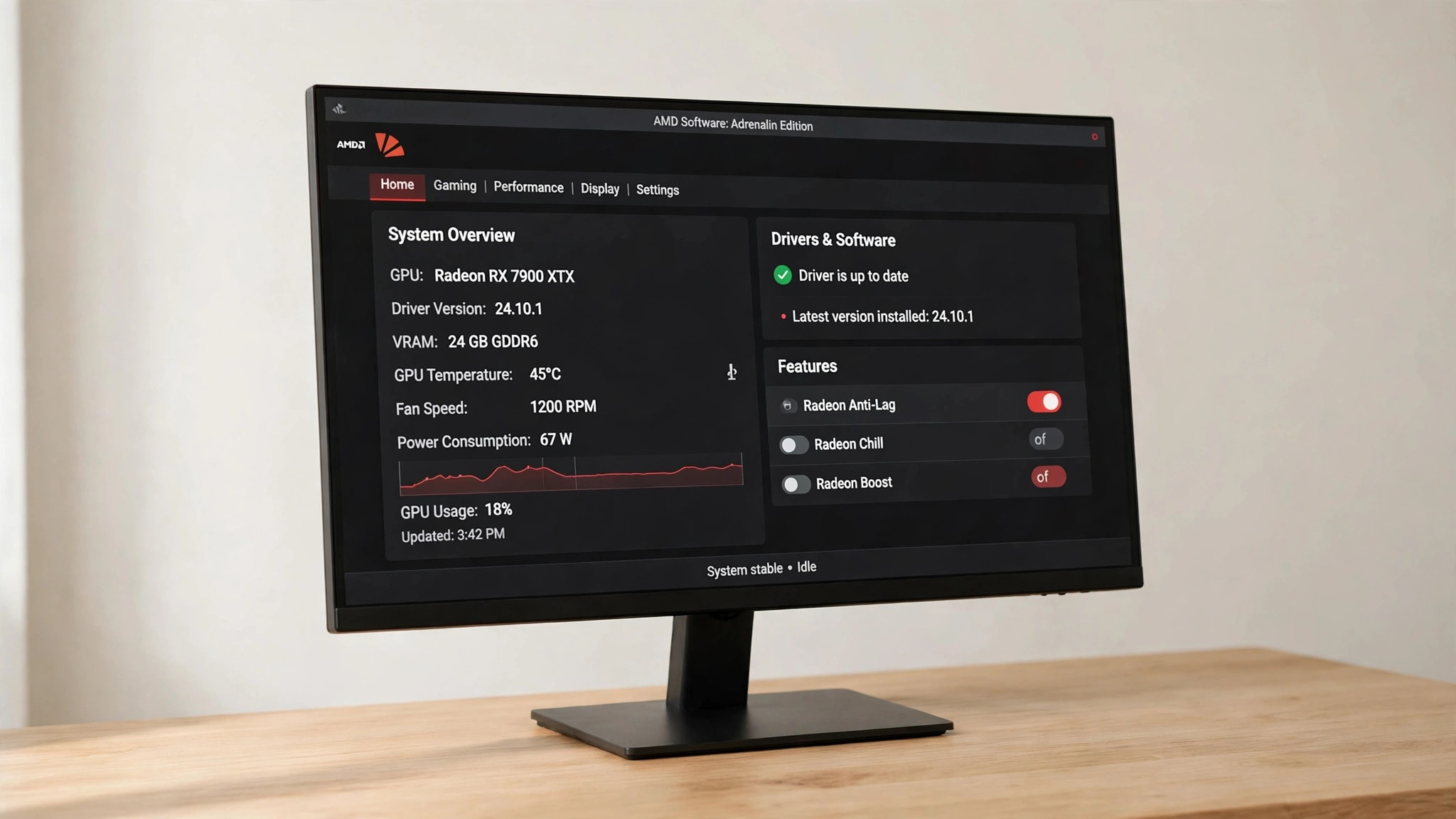
AMD works much the same way. The AMD Software: Adrenalin Edition app handles updates for you, or you can download the driver by hand from AMD’s website.
Use AMD Software: Adrenalin Edition
- Open AMD Software: Adrenalin Edition from your Start menu, or right-click your desktop and pick it from the menu.
- Click the System tab, then look for the Software Version section.
- If a new driver is ready, click Download. When the download ends, click Install.
- Pick Express Install for a normal update. Your screen may flash or go black for a moment while the driver installs. That is normal, so let it finish.
- When the install is done, restart your PC if the app asks you to.
Download the Driver From AMD’s Website
Go to the official AMD driver download page. Pick your graphics card from the product lists, then click Submit. Download the driver for your version of Windows. Run the file and follow the steps. Choose Express Install for a normal update. During a manual install, AMD also offers a Factory Reset option. It removes the old driver first and then installs the new one. Use it only if you have had driver problems before, because it also resets your AMD settings. Wait for the install to finish, then restart if asked.
How to Update Intel Drivers
Intel graphics cards, including Arc cards and built-in Intel graphics, use the Intel Driver and Support Assistant. It scans your PC, finds the right driver, and installs it for you.
Use the Intel Driver and Support Assistant
- Download the Intel Driver and Support Assistant from Intel’s website if you do not have it yet, and install it.
- Open it from your Start menu or the icon in your taskbar. It will scan your PC and show any driver updates it found.
- Click Download next to the graphics driver, then click Install when the download ends.
- Your screen may flicker while it installs. Let it finish, then restart your PC if asked.
Download the Driver From Intel’s Website
You can also download the driver by hand. Go to the Intel Download Center, search for your graphics card or processor model, and pick the graphics driver for your version of Windows. Download the .exe file, run it, and follow the steps on screen. Restart your PC when the install ends.
What Is a Clean Install, and When Should You Use It?
A normal driver update installs the new driver over the old one. A clean install removes the old driver first, then installs the new one. Most of the time, a normal update is fine. A clean install is worth doing when you have strange problems, such as games that crash after an update, settings that will not change, or a new card that replaced an old one from a different brand.
Both Nvidia and AMD offer a clean install choice inside their own installers. In Nvidia’s installer, pick Custom Installation and tick “Perform a clean installation”. In AMD’s installer, pick the Factory Reset option. These built-in choices are enough for most people.
How to Do a Full Clean Install With DDU
If problems keep coming back, a free tool called Display Driver Uninstaller, or DDU, can remove every trace of the old driver. It is a tool that many PC repair guides use, but it is a strong step, so only use it when you have a real problem to fix. For a normal update, it is not needed.
Before You Run DDU
Download the new driver from the official website first and save the file where you can find it. Then disconnect from the internet so Windows does not install its own driver while you work. After that, restart Windows in Safe Mode, run DDU, and pick “Clean and restart”. When your PC restarts, install the new driver you downloaded. Then connect to the internet again.
How to Check If the Driver Update Worked
After the update, check that the new driver is actually running. Open Device Manager, expand Display adapters, right-click your graphics card, and pick Properties. On the Driver tab, you will see the driver version and date. Compare them with the version on the official download page. If they match, the update worked.
Then open a game or app you use often and play for a few minutes. Look for smooth play, no flicker, and no crashes. You can also check your GPU temperature while gaming to make sure the card runs at a normal heat level after the change. If the version did not change, the install may have failed. Try the update again, or run the installer as an administrator by right-clicking the file and picking “Run as administrator”.
What to Do If Something Goes Wrong After an Update
Most updates go well, but if a game starts to crash or your screen acts up after an update, do not panic. The fix is usually simple, and you can undo the update in a few minutes.
Roll Back the Driver
Windows can put the old driver back for you. Open Device Manager, expand Display adapters, right-click your graphics card, and pick Properties. On the Driver tab, click Roll Back Driver if the button is active. Pick a reason, click Yes, and restart your PC. Your card will use the old driver again.
Use System Restore
If the roll-back button is greyed out, use the restore point you made before the update. Open the Start menu, type “Recovery”, and open it. Click “Open System Restore”, pick the restore point named “Before driver update”, and follow the steps. Your PC will restart and return to the state it was in before the update. Your files stay safe, but apps and drivers installed after that point will be removed.
Reinstall the Previous Driver
You can also download the older driver from the official website. On the Nvidia, AMD, or Intel download page, look for older versions or the driver archive. Download the version you had before, run it, and install it over the new one. If games still run poorly after the driver is back to normal, the cause may be something else. A mismatch between your CPU and GPU, called a bottleneck, can also cause low frame rates. Our guide on what a GPU bottleneck is and how to fix it can help you check that.
How Often Should You Update Your GPU Drivers?
You do not need to update every week. A good rule is to update when a new game you want to play comes out, when the release notes list a fix for a problem you have, or when you notice a bug that a new driver may fix. For most people, checking once a month is enough. If your games run well and nothing is broken, you can wait. On the other hand, if you play new games on release day, updating on the same day the driver comes out is a good habit. The release notes on the official download page tell you what each driver fixes, so read them before you install.
Avoid driver updater tools that promise to update all your drivers at once. They often install the wrong files or add software you do not need. The official app from your card maker is the only updater you need.
Conclusion
Updating your GPU driver is a small job that keeps your PC running well. Download from the official source, make a restore point first, and check that the new driver works after the install. If you now know how to update GPU drivers safely Nvidia AMD Intel, you can keep your games smooth without taking risks. Update when there is a reason, skip the rest, and your graphics card will serve you well for years.
Frequently Asked Questions
Is it safe to update my GPU driver?
Yes, it is safe when you download the driver from the official Nvidia, AMD, or Intel website or app. Make a system restore point first, and do not turn off your PC during the install. If a problem appears, you can roll back the driver or use System Restore.
Do I need to uninstall the old driver first?
No, you do not. A normal update installs over the old driver, and that works fine for most people. Only do a clean install if you have crashes or strange problems, or if you switched to a card from a different brand.
Can a driver update improve FPS?
Sometimes. A new driver can improve frame rates in new games, fix stutter, or repair a bug that was slowing your card down. Do not expect a big jump in older games. If your FPS is low in every game, the cause may be your hardware, not the driver.
What happens if my screen goes black during a driver update?
Your screen may go black for a few seconds while the new driver installs. That is normal. Wait at least a minute. If the screen stays black for more than five minutes, restart your PC. Windows will usually start with a basic driver, and you can try the update again.
Should I use Windows Update to update my GPU driver?
Windows Update can install a basic graphics driver, and it is fine as a backup. For the best game performance, use the driver from Nvidia, AMD, or Intel. Their drivers are newer and include game fixes that Windows Update often does not have.
Henry is the founder and writer behind GPUGuides, based in Los Angeles, California, USA. He writes practical, step-by-step GPU guides in plain English to help gamers and PC owners get the best out of their graphics cards.


9 thoughts on “How to Update GPU Drivers Safely: Nvidia, AMD, and Intel”