
If your graphics card runs hot and loud, you do not have to buy a new cooler or a new card. There is a free fix that lowers the temperature without losing speed: undervolting. It means giving the card a little less voltage while it keeps the same clock speed, so it makes less heat and the fans can slow down. If you want to learn how to undervolt GPU to lower temperature without losing FPS, this guide shows you the safe way to do it, step by step, for Nvidia and AMD cards.
What Is GPU Undervolting?
Every graphics card runs on a voltage, which is the electric power that feeds the chip. The maker sets a voltage that works for every card of that model, including the weakest ones. Most cards can run fine on a little less voltage than the factory setting. Undervolting lowers the voltage in small steps while the clock speed stays the same, so the card does the same work with less power.
Less power means less heat. A cooler card lets its fans spin slower, so the PC gets quieter. It also means the card is less likely to slow itself down when it gets hot. The frame rate stays the same, because the clock speed has not changed. That is the whole idea: same speed, less heat, less noise.
Why Undervolt Instead of Overclock?
Overclocking pushes the clock speed up for more frames, but it also adds heat and noise. Undervolting does the opposite: it keeps the speed and removes heat. If your card already runs hot, overclocking makes the problem worse. Undervolting fixes it. The two methods suit different goals, and you can even combine them, but start with undervolting if heat is your problem.
Undervolting is also the better choice for small cases and laptops, where airflow is limited and every degree matters. It can turn a card that sounds like a hair dryer into one you barely hear. Our guide on how to overclock GPU safely with MSI Afterburner covers the other method, if you want more speed instead of less heat.
Is Undervolting Safe?
Yes, undervolting is safe when you lower the voltage in small steps and test after each one. Lowering voltage cannot harm the card the way raising voltage can. The worst thing that happens with too little voltage is a crash or a frozen screen. When that happens, you restart the PC, raise the voltage one step, and the card is fine.
The card will not break from a failed undervolt. The settings only last until the PC restarts, unless you save them to apply at startup. If a setting causes a crash, simply do not save it. Check your warranty if you are unsure, but most makers do not treat undervolting the way they treat heavy overclocking. Keep the steps small and the temperatures in check, and the risk is very low.
Test your undervolt in more than one game. A setting that works in one game can fail in another, because different games stress the card in different ways. Run at least two games, or a game and a benchmark, before you save the profile. If both run clean for fifteen minutes each, the setting is ready to keep.
What You Need Before You Start
For Nvidia cards, use MSI Afterburner, which is free from the official MSI Afterburner page. For AMD cards, use AMD Software: Adrenalin Edition, which has undervolting built in. You also need a way to watch the temperature and the frame rate. The free tool GPU-Z from TechPowerUp shows voltage, clock speed, and temperature in one window.
- MSI Afterburner for Nvidia, or AMD Software for AMD cards
- GPU-Z for monitoring voltage and temperature
- A demanding game or benchmark to test with
- A notebook to write down each setting
Before you change anything, run your test game for ten minutes and write down the temperature and the frame rate. These are your baseline numbers. You can check your GPU temperature while gaming if you are not sure how to read the numbers. You will compare everything against the baseline to prove the undervolt worked.
How to Undervolt GPU to Lower Temperature Without Losing FPS
Here is the full method in order. The rule is simple: lower the voltage a little, test it, and only then lower it a little more. This is the core of learning how to undervolt GPU to lower temperature without losing FPS, so do not skip the testing steps.
Step 1: Note Your Baseline Temperature and FPS
Run your test game for ten minutes at stock settings. Write down the highest temperature and the average frame rate. These are your baseline numbers. After each change, you will run the same test and compare. The goal is a lower temperature with the same frame rate.
Step 2: Open the Voltage Curve in MSI Afterburner
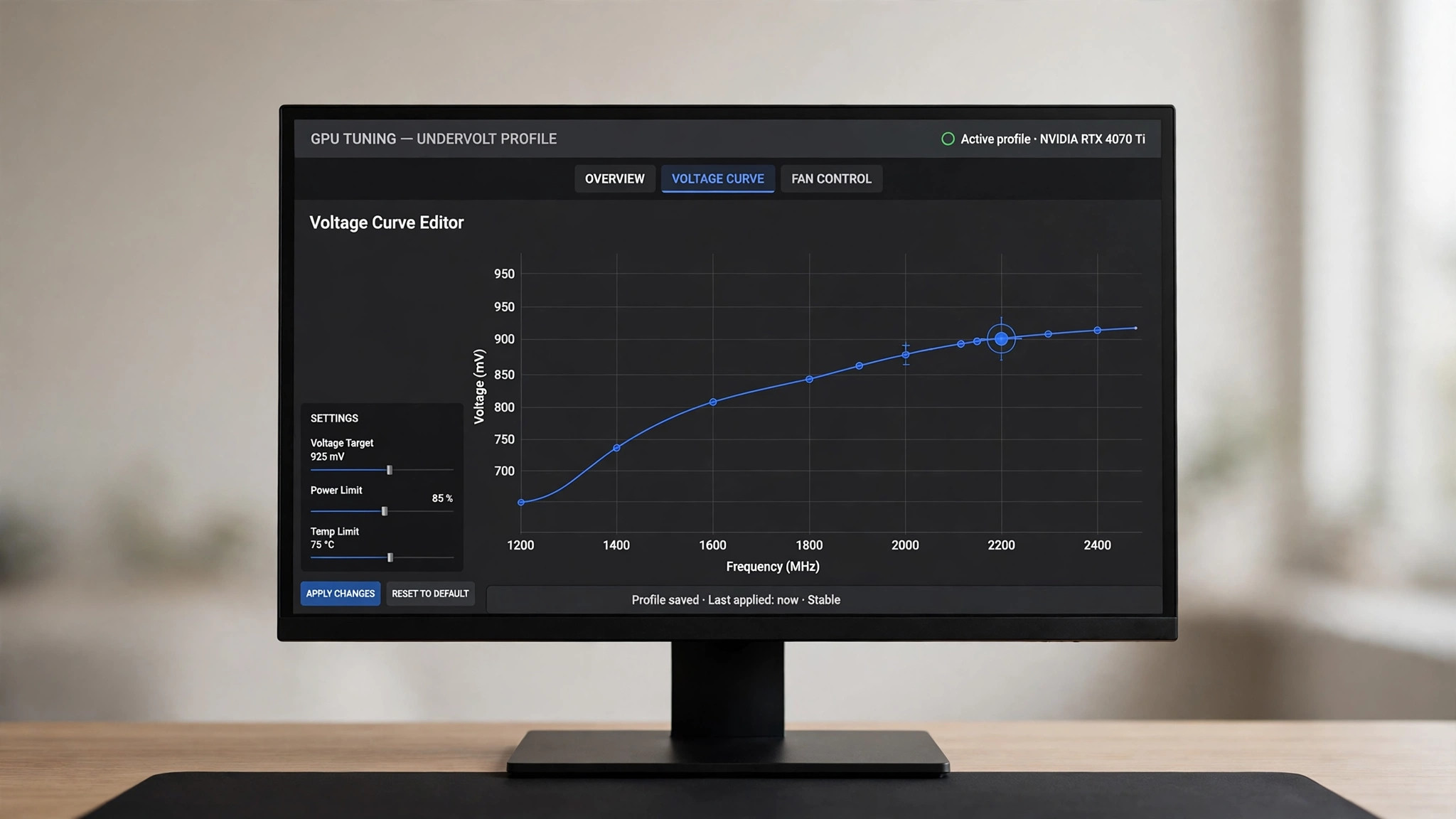
Open MSI Afterburner and press Ctrl + F to open the voltage curve editor. You will see a graph with voltage on one axis and clock speed on the other. Each point on the curve is a voltage and speed pair. The card picks a point based on the load. Your job is to move the curve so the card reaches the same clock speed at a lower voltage.
Step 3: Lower the Voltage in Small Steps
Pick the clock speed your card reaches in games, and lower the voltage at that point by a small amount. The simplest way is to drag the curve points down at the top end, or to set a fixed voltage for your target clock speed. Click the check mark to apply. Do not lower the voltage by a large amount at once, because you will not know which step caused a problem if the card crashes.
How Much Voltage to Remove Each Time
Lower the voltage by 25 mV at a time. Test after each step. When the card starts to crash or the frame rate drops, raise the voltage back by 25 mV. That last stable setting is your undervolt. Most cards settle 50 to 100 mV below stock, but every card is different, so let your own tests decide.
Step 4: Test for Stability and FPS
After each change, run your test game for ten to fifteen minutes. Watch the temperature, the frame rate, and the clock speed. A good undervolt shows a lower temperature with the same frame rate and the same clock speed. If the game crashes or the screen freezes, the voltage is too low. Raise it by 25 mV and test again. If the frame rate drops, the card is slowing itself down, so raise the voltage a step as well.

Step 5: Undervolting an AMD Card in AMD Software
AMD cards use AMD Software: Adrenalin Edition instead of Afterburner. Open it, go to the Performance tab, then Tuning. Turn on manual tuning and find the voltage setting. Lower the voltage by 25 mV at a time, apply, and test the same way as above. AMD Software also shows the temperature and clock speed, so you can watch the same numbers while you test.
AMD Curve Settings to Watch
Watch the voltage, the clock speed, and the temperature together. If the clock speed drops after you lower the voltage, the card is slowing itself down, and you have gone too far. Raise the voltage back until the clock speed holds steady. If the temperature falls and the clock speed stays the same, you have found a good setting.
Step 6: Save Your Profile
When you find a stable setting, save it. In Afterburner, click a profile number and then the save icon. In AMD Software, save the tuning profile. Turn on the option to apply the profile at startup, so you do not have to set it each time. If you ever want to stop undervolting, open the tool and click reset to return to stock settings in one click.
How Much Temperature Can You Save?
The gain varies by card. Most cards run a few degrees cooler after a good undervolt, and the fans spin slower and quieter. Some cards save more, some save less. The frame rate should stay the same, because the clock speed has not changed. That is the test that matters: compare your new numbers with your baseline. If the temperature is lower and the frame rate is the same, the undervolt worked.
If the frame rate drops after you lower the voltage, the card is slowing itself down, and the voltage is too low. Raise it by 25 mV and test again. If the temperature barely changes, your card was already running close to its best voltage, and there is little to gain. That is fine. A small gain is still a gain, and the card will run a little cooler and quieter than before.
There is another gain that is easy to miss: fan noise. A cooler card does not need its fans to spin as fast, so the PC gets quieter during games. If your fans used to speed up and get loud in heavy scenes, you should hear them stay calm after a good undervolt. That quieter PC is often the first thing people notice, even before they look at the temperature.
What to Do If Undervolting Causes Crashes
If a game crashes after you undervolt, reset the tool to its default settings and test the game again. If the crashes stop, the voltage was too low. Start again from a higher voltage and test in smaller steps. If the crashes continue at stock settings, the cause is something else, and the undervolt was not the problem.
Check the temperature next. A card that runs hot will crash even without an undervolt. You can check your GPU temperature while gaming to see the numbers. If the card is dusty, our guide on how to clean a graphics card safely without damaging it shows the safe way to clear it out. Also update the driver, because a driver bug can look like a bad undervolt. Read our guide on how to update GPU drivers safely for Nvidia, AMD, and Intel for the safe steps.
Conclusion
Undervolting is a free way to make your graphics card cooler and quieter without losing speed. Lower the voltage by 25 mV at a time, test after each step, and keep the setting that holds the same frame rate at a lower temperature. Save it, and your card will run cooler every time you play. Now that you know how to undervolt GPU to lower temperature without losing FPS, you can enjoy a cooler, quieter PC with the same performance you had before.
Frequently Asked Questions
Will undervolting reduce my FPS?
No, not if you do it right. Undervolting keeps the clock speed the same and only lowers the voltage, so the frame rate stays the same. If your FPS drops after an undervolt, the voltage is too low and the card is slowing itself down. Raise the voltage by 25 mV and test again.
Is undervolting better than underclocking?
Yes, for most people. Undervolting keeps the speed and lowers the heat. Underclocking lowers the speed, which also lowers the heat, but it costs you frame rate. Undervolting gives you the temperature drop without the performance loss, which is why it is the better first step.
Can I undervolt a laptop GPU?
Yes, and it often helps more than on a desktop, because laptops have less airflow and run hotter. The steps are the same, but be extra careful with the temperature, and test with a game you play often. If the laptop still runs hot, clean the vents and check that the fans are not blocked.
Does undervolting save power?
Yes. A lower voltage means the card draws less power, so your PC uses less electricity while you play. The saving is small for one card, but it adds up over time, and the card runs cooler and quieter as a result.
Do I need to undervolt after every driver update?
Usually not. A driver update does not change your saved undervolt profile in Afterburner or AMD Software. Check the temperature and frame rate after a big driver update, just in case. If the numbers changed, retest the profile and adjust it if needed.
Henry is the founder and writer behind GPUGuides, based in Los Angeles, California, USA. He writes practical, step-by-step GPU guides in plain English to help gamers and PC owners get the best out of their graphics cards.


One thought on “How to Undervolt GPU to Lower Temperature Without Losing FPS”