
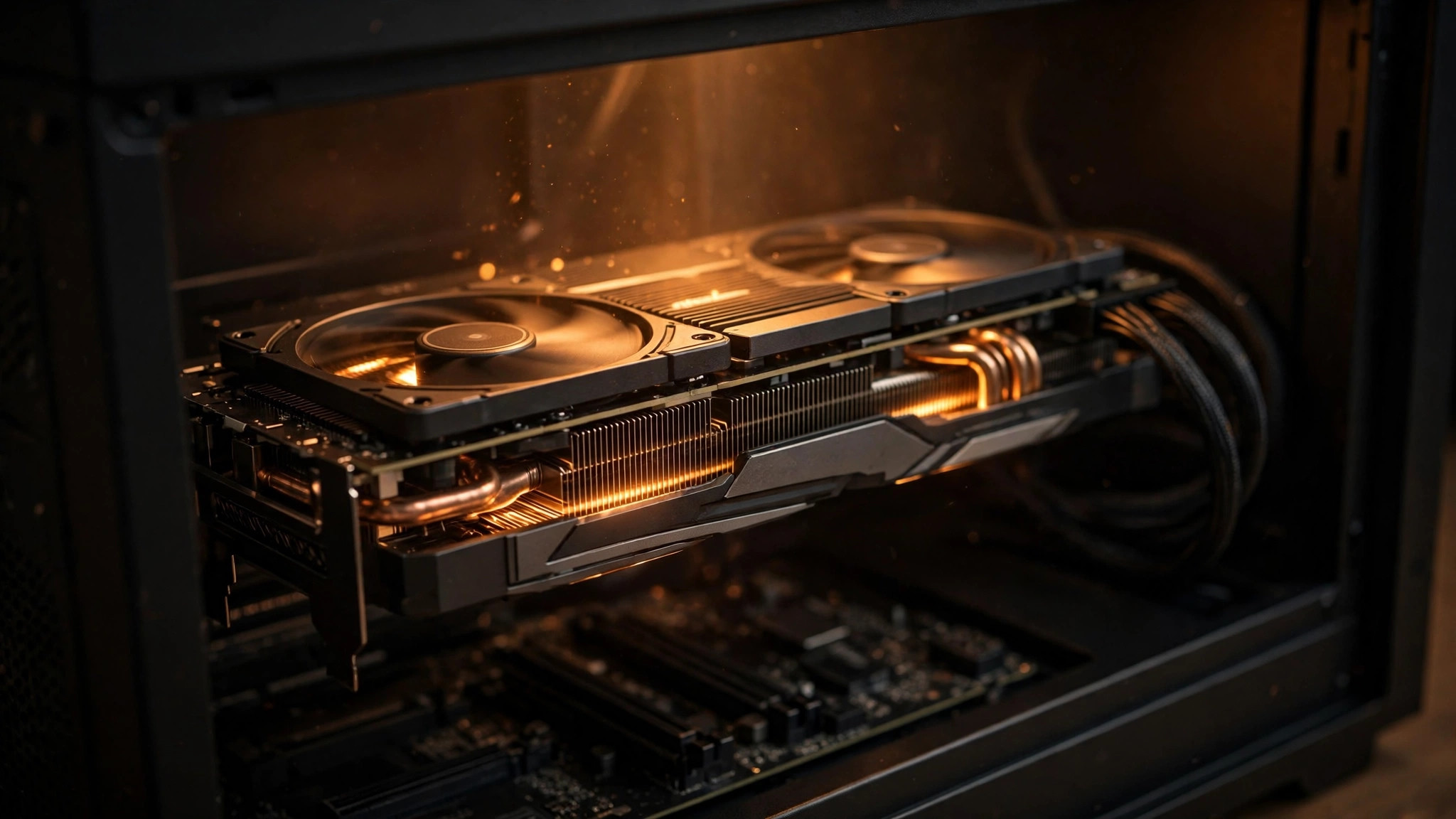
If your game starts to stutter, your fans get loud, or your PC shuts down in the middle of a match, your graphics card may be overheating. This guide shows you how to fix GPU overheating while gaming step by step, with simple fixes you can do at home, in order, from the easiest to the hardest.
Overheating is one of the most common GPU problems, and it is also one of the easiest to fix. Most of the time, the cause is dust, poor airflow, or a fan setting that is too low. You do not need to buy new parts. Work through the steps below, and check the temperature after each one, so you can see what made the difference.
What Is GPU Overheating?
A GPU overheats when it gets hotter than it was built to handle for a long time. Every graphics card has a safe temperature range, and it is designed to slow itself down, which is called thermal throttling, if it gets too hot. This protects the card from damage, but it also cuts your frame rate and makes games stutter.
A hot card is not always a broken card. Games push the card hard, so it is normal for the temperature to rise while you play. The problem starts when the temperature stays high, the fans run at full speed all the time, or the card throttles so much that the game becomes unplayable. That is when you need to fix it.
What Temperature Is Too Hot?
For most modern graphics cards, a gaming temperature between 65°C and 85°C is normal. The card will start to slow down somewhere around 83°C to 90°C, depending on the model, and it will shut down or crash if it goes much higher. If your card sits above 90°C while gaming, that is too hot, and you should fix it before it causes damage.
| Temperature | What It Means |
|---|---|
| Under 60°C | Cool, no problem |
| 60–75°C | Normal for gaming |
| 75–85°C | Warm but safe |
| 85–90°C | Hot, check airflow and dust |
| Over 90°C | Too hot, fix it now |
These numbers are a guide, not a rule. Some cards run hotter by design, and laptop cards run hotter than desktop cards. The best way to know is to check your own card’s temperature while gaming and compare it with the maker’s safe range.
Why Does a GPU Overheat While Gaming?
A GPU overheats when it cannot get rid of heat as fast as it makes it. The card’s cooler, which is the heatsink and fans, pulls heat away from the chip and pushes it out of the case. If anything blocks that path, the heat builds up. Here are the most common causes.
Dust Buildup
Dust is the most common cause. It settles on the heatsink fins and the fan blades, and it blocks the air. A card that has not been cleaned in a year can run 10°C or more hotter than a clean one. This is the first thing to check, and it is also the easiest to fix.
Poor Airflow in the Case
If the air inside the case is hot, the card cannot cool itself. This happens when the case fans are blocked, the cables block the air path, or the case sits in a closed cupboard. A card in a case with no intake fans will always run hotter than the same card in a case with good airflow.
Dried Thermal Paste
Thermal paste sits between the GPU chip and the heatsink, and it helps heat move from the chip to the cooler. After a few years, the paste dries out and stops working well. This is more common in cards that are three or more years old, and it is a bigger job to fix, because you have to take the cooler off the card.
High Room Temperature
A card in a hot room will run hotter than the same card in a cool room. If your room is 30°C in summer, the card’s temperature will be higher than it is in winter. This is normal, but it means you have less room for error, so dust and airflow matter even more.
Overclock or High Power Limit
An overclocked card, or one with a high power limit, makes more heat. If you overclocked your card and it now overheats, the overclock is the cause. Turning the overclock off, or undervolting the card, can bring the temperature down a lot.
Signs Your GPU Is Overheating
You do not need a tool to spot overheating, because the signs are clear. The fans get loud and stay loud, the game stutters or the frame rate drops after a few minutes, the screen shows artefacts such as strange colours or shapes, or the PC shuts down or restarts during a game. If you see any of these, check the temperature before you do anything else. Our guide on how to check GPU temperature while gaming in Windows 11 shows you how.
How to Fix GPU Overheating While Gaming Step by Step
Work through these steps in order. Start with the easy ones, and check the temperature after each step, so you know what helped. You do not need to do them all, just the ones that apply to your PC.
Step 1: Check the Temperature First
Before you change anything, find out how hot the card actually gets. Use a free tool such as MSI Afterburner or TechPowerUp GPU-Z to watch the temperature while you play for ten minutes. Write down the highest number. This is your starting point, and you will compare it with the temperature after each fix.
Step 2: Improve the Airflow Around Your PC
Move the PC out of a closed cupboard or away from a wall, so air can flow in and out. Make sure the case fans are spinning and not blocked by cables or dust. If your case has fan filters, take them out and wash them. This alone can drop the temperature by a few degrees.
Step 3: Clean the Dust Out of the Card
Turn the PC off, unplug it, and open the side panel. Use compressed air to blow the dust out of the card’s fans and heatsink, holding the fans still so they do not spin. Work in short bursts, and do it outside if you can, because the dust goes everywhere. For the full safe method, follow our guide on how to clean a graphics card safely without damaging it.

Step 4: Set a Better Fan Curve
A fan curve tells the fans how fast to spin at each temperature. Many cards use a quiet curve that keeps the fans slow until the card is very hot. Open MSI Afterburner, set the fans to spin faster at lower temperatures, and save the setting. A small rise in fan noise is worth a big drop in temperature.
Step 5: Lower the Graphics Settings
If the game is still too hot, lower the settings that make the card work hardest, such as ray tracing, shadow quality, and resolution. Turning on DLSS or FSR also helps, because the card renders at a lower resolution and makes less heat. Our guide on what is DLSS and how does it work explains how it lowers the load on the card.
Step 6: Undervolt the Card
Undervolting lowers the voltage the card uses, which cuts heat without losing frame rate. It takes some care, but it is safe if you follow the steps. Our guide on how to undervolt GPU to lower temperature without losing FPS walks through it in detail.
What to Do If It Still Overheats
If you have done all six steps and the card is still above 90°C, the thermal paste may be dried out, or the card’s cooler may be failing. Replacing the thermal paste is the next step, but it means taking the cooler off the card, which can void the warranty on some cards. If the card is still under warranty, contact the maker first.
If the card is out of warranty and you are not comfortable opening it, a local repair shop can do the job for you. It is a quick repair for a shop, and it costs far less than a new card. Do not keep playing on a card that stays above 90°C, because the heat will wear it out over time.
How to Stop Your GPU Overheating Again
Once the temperature is back to normal, a few simple habits will keep it that way. Clean the dust out of the case every three to six months, or more often if you have pets. Keep the PC off the floor, where it sucks in more dust, and keep the room ventilated. Check the temperature once a month, so you catch a slow rise before it becomes a problem.
Keep your drivers up to date, because new drivers can improve fan control and power use. Our guide on how to update GPU drivers safely for Nvidia, AMD, and Intel shows the safe way to do it. If you use a custom fan curve, save it as a profile in MSI Afterburner, so it loads every time you start the PC.
When to Worry and When Not To
A card that hits 80°C in a heavy game is not a problem. A card that hits 90°C and throttles, or that shuts the PC down, is a problem. The difference is what the card does about the heat. If the frame rate stays steady and the PC stays on, the card is coping. If the game stutters, the fans scream, or the PC crashes, the card is not coping, and you should work through the steps above.
It also helps to know your own card. Some cards run hot by design and are fine at 85°C, while others are built to stay cooler. Check the maker’s safe range for your model, and do not panic over a single high reading on a hot summer day. What matters is the pattern: a card that keeps getting hotter over weeks has a problem, while a card that is hot only in one heavy game usually just needs a lower setting.
Conclusion
GPU overheating is usually caused by dust, poor airflow, or a fan setting that is too low, and most of the time you can fix it at home in under an hour. Start by checking the temperature, then clean the dust, improve the airflow, and set a better fan curve. Now that you know how to fix GPU overheating while gaming step by step, you can keep your card cool, quiet, and running at full speed.
Frequently Asked Questions
What temperature should my GPU be while gaming?
Between 65°C and 85°C is normal for most cards. Above 90°C is too hot. Check your own card’s safe range on the maker’s site, and watch the temperature while you play to see where yours sits.
Can overheating damage my GPU?
Yes, if it goes on for a long time. A card that runs above 90°C for months can wear out faster. The good news is that modern cards protect themselves by slowing down or shutting off before they are damaged, so a short spell of overheating is unlikely to kill the card.
Why does my GPU overheat only in some games?
Some games push the card much harder than others, especially games with ray tracing or high resolutions. A game that uses the card at 100% will make more heat than a game that uses it at 50%. Lower the settings or turn on DLSS in the heavy games.
Is it safe to clean my GPU with compressed air?
Yes, if you do it right. Turn the PC off, unplug it, hold the fans still so they do not spin, and use short bursts of air. Do not use a vacuum cleaner, because it can build up static and damage the card.
Should I replace the thermal paste on my GPU?
Only if the card is a few years old and the other steps did not help. Replacing the paste means taking the cooler off the card, which can void the warranty. If the card is still under warranty, contact the maker first.
Henry is the founder and writer behind GPUGuides, based in Los Angeles, California, USA. He writes practical, step-by-step GPU guides in plain English to help gamers and PC owners get the best out of their graphics cards.


One thought on “How to Fix GPU Overheating While Gaming Step by Step”