
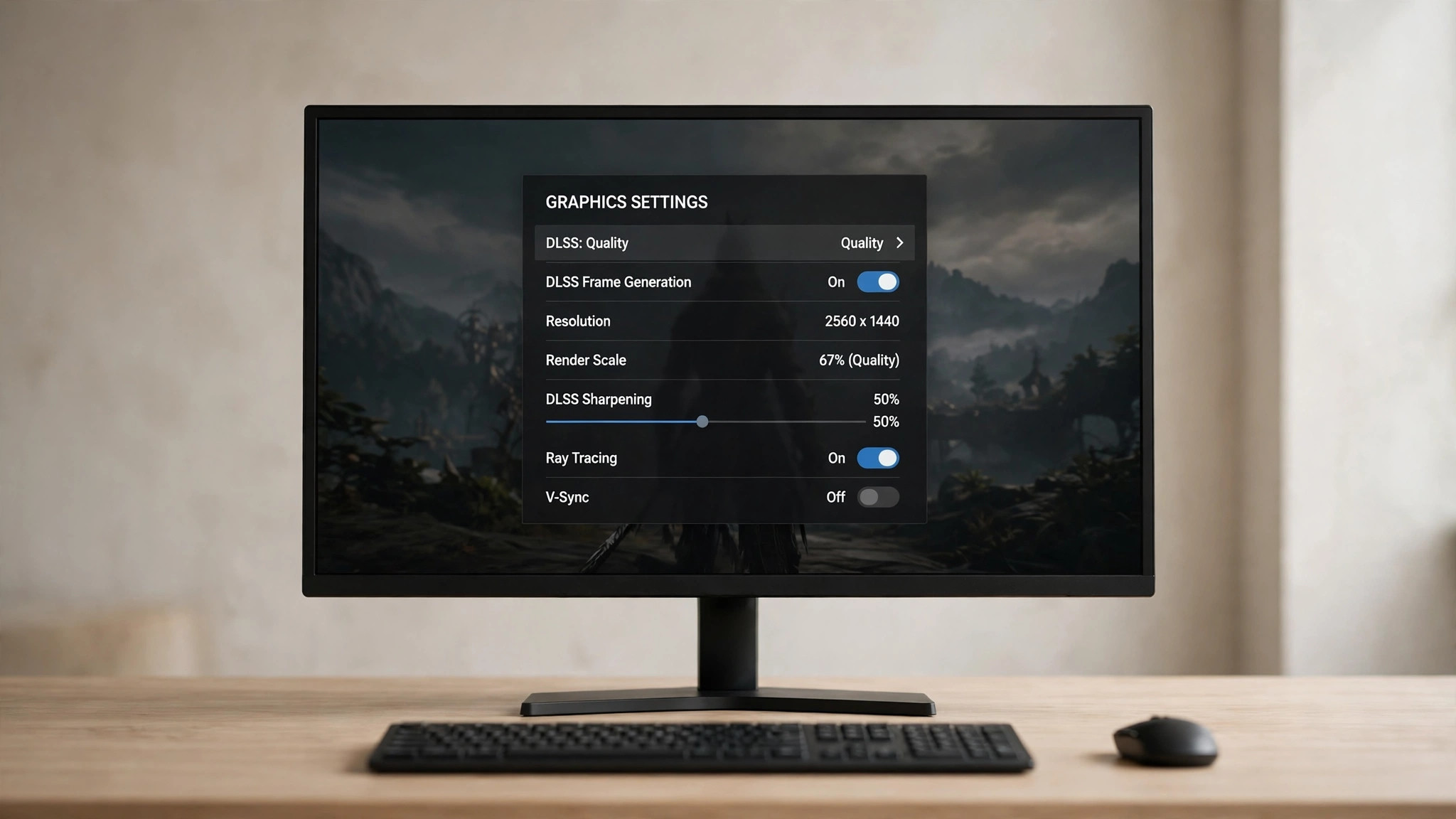
DLSS is one of the most useful settings in modern PC gaming, and it can give you free frame rate. If you want to know what is DLSS and how does it work, this guide explains it in plain words, with no jargon.
DLSS stands for Deep Learning Super Sampling. It is a technology from Nvidia that makes games run faster without making them look worse. It renders the game at a lower resolution, then uses artificial intelligence to rebuild a sharp, full-resolution picture. The result is more frames per second, and in many games the picture looks just as good as native resolution, or even better.
What Is DLSS?
DLSS is a smart upscaling tool built into Nvidia RTX graphics cards. When you turn it on, the game draws each frame at a smaller size, for example 1080p instead of 1440p, and then DLSS scales it back up to your monitor’s resolution. The card does the extra work with AI, not with brute force, so the game runs faster than it would at full resolution.
The AI part is what makes DLSS different from normal upscaling. Normal upscaling stretches a small picture to fit a big screen, and it looks soft or blurry. DLSS was trained on thousands of game images, so it knows what a sharp edge, a thin fence, or a distant tree should look like. It rebuilds those details instead of just stretching them, which is why the result can look very close to the real thing.
DLSS only works on Nvidia RTX cards, because it needs the card’s Tensor cores, which are special parts built for AI work. Older GTX cards do not have Tensor cores, so they cannot run DLSS. AMD and Intel have their own versions, called FSR and XeSS, which work in a similar way but do not use the same AI hardware.
DLSS vs Normal Upscaling
The easiest way to see the difference is to compare them side by side. Normal upscaling is fast and simple, but it loses detail. DLSS is slower than plain upscaling but much faster than drawing the full picture, and it keeps far more detail.
| Feature | Normal Upscaling | DLSS |
|---|---|---|
| How it works | Stretches a small picture | Rebuilds the picture with AI |
| Speed | Very fast | Fast |
| Image quality | Soft and blurry | Sharp, close to native |
| Needs special hardware | No | Yes, an RTX card |
In short, normal upscaling is a quick stretch, while DLSS is a rebuild. The rebuild takes more work, but the picture is much closer to the real thing.
How Does DLSS Work?
Here is what is DLSS and how does it work, step by step. First, the game renders the frame at a lower resolution, which is much faster for the card. Second, DLSS looks at that frame, along with motion data that tells it how things moved since the last frame, and the previous full-resolution frame. Third, the AI model uses all of this to build a new, sharp frame at your monitor’s resolution. This happens for every frame, many times each second.
The motion data is the clever part. Because the game knows how the camera and every object moved, DLSS can track a thin edge or a small detail from one frame to the next and keep it stable. Without that data, upscaled edges would shimmer and flicker as you move. The AI model was trained by Nvidia on a huge set of game images, so it has learned what real game detail looks like.
DLSS also uses the card’s Tensor cores, which are built to run AI maths very fast. The rest of the card draws the game, while the Tensor cores handle the upscaling. This split is why DLSS can give back so many frames: the heavy drawing work is done at a lower resolution, and the AI work is done on hardware that would otherwise sit idle. You can read more about how Nvidia builds this technology on the Nvidia DLSS page.
DLSS Quality Modes
DLSS comes with quality modes, and each one trades speed for sharpness. Quality mode renders at about two-thirds of your screen resolution and gives the sharpest picture, with a good frame rate boost. Balanced mode sits in the middle. Performance mode renders at about half resolution and gives the biggest speed boost, but the picture is softer. Ultra Performance mode renders at about one-third resolution and is made for 8K or very heavy ray tracing.
For most players, Quality mode is the best place to start. It looks almost the same as native resolution, and it still gives a useful frame rate boost. If you need more speed, drop to Balanced or Performance. Only use Ultra Performance if you are playing at 4K or 8K with heavy ray tracing, where the extra speed matters more than the softness.
DLSS, DLSS 2, DLSS 3, and DLSS 4
DLSS has changed a lot since it first appeared. The first version only worked in a few games and the picture was soft. DLSS 2 was a big step forward: it works in hundreds of games and the picture is sharp. DLSS 3 added frame generation, which creates whole new frames between the real ones to double the frame rate. DLSS 4, the newest version, uses a transformer AI model that is better at fine detail, such as hair, fences, and distant objects.
What Is DLSS Frame Generation?
Frame generation is the headline feature of DLSS 3 and later. Instead of only upscaling frames, the card also creates new frames in between the real ones. If the game draws 60 real frames per second, frame generation can add 60 more, so you see 120 frames per second. The new frames are built by the AI from the motion data, so they look right in most scenes.
Frame generation is not free. It adds a small delay, called latency, because the card needs time to build the extra frames. In fast competitive games, that delay can hurt, so many players turn frame generation off for shooters. In slow story games, the extra smoothness is worth it. Nvidia Reflex, which cuts latency, is often turned on with frame generation to keep the delay low.
How to Turn On DLSS in a Game
Turning on DLSS takes less than a minute. The setting lives in the game’s graphics menu, and you need an RTX card and a game that supports DLSS. Here are the steps.
Step 1: Check That Your Card and Game Support DLSS
You need an Nvidia RTX card (20 series or newer) and a game with DLSS in its settings. You can check the card name in Windows, and our guide on how to check what graphics card you have in Windows 11 shows you how.
Step 2: Update Your Graphics Driver
Install the latest Nvidia driver, because new drivers add DLSS support for new games and improve quality. Follow our guide on how to update GPU drivers safely for Nvidia, AMD, and Intel if you want the safe way to do it.
Step 3: Open the Game’s Graphics Settings
Start the game, open the settings menu, and go to the graphics or video section. Look for a setting called DLSS, DLSS Super Resolution, or DLSS Frame Generation. Some games put it under an upscaling or image quality heading.
Step 4: Pick a Quality Mode
Choose Quality mode first. Play for a few minutes and check the frame rate and the picture. If the game runs well and looks sharp, keep it. If you want more speed, try Balanced or Performance mode.
Step 5: Turn On Frame Generation (Optional)
If your card is an RTX 40 or 50 series card and the game supports it, you can also turn on DLSS Frame Generation for extra smoothness. Turn on Nvidia Reflex at the same time to keep the delay low. If the game feels laggy, turn frame generation off and keep only DLSS upscaling.

Does DLSS Make Games Look Worse?
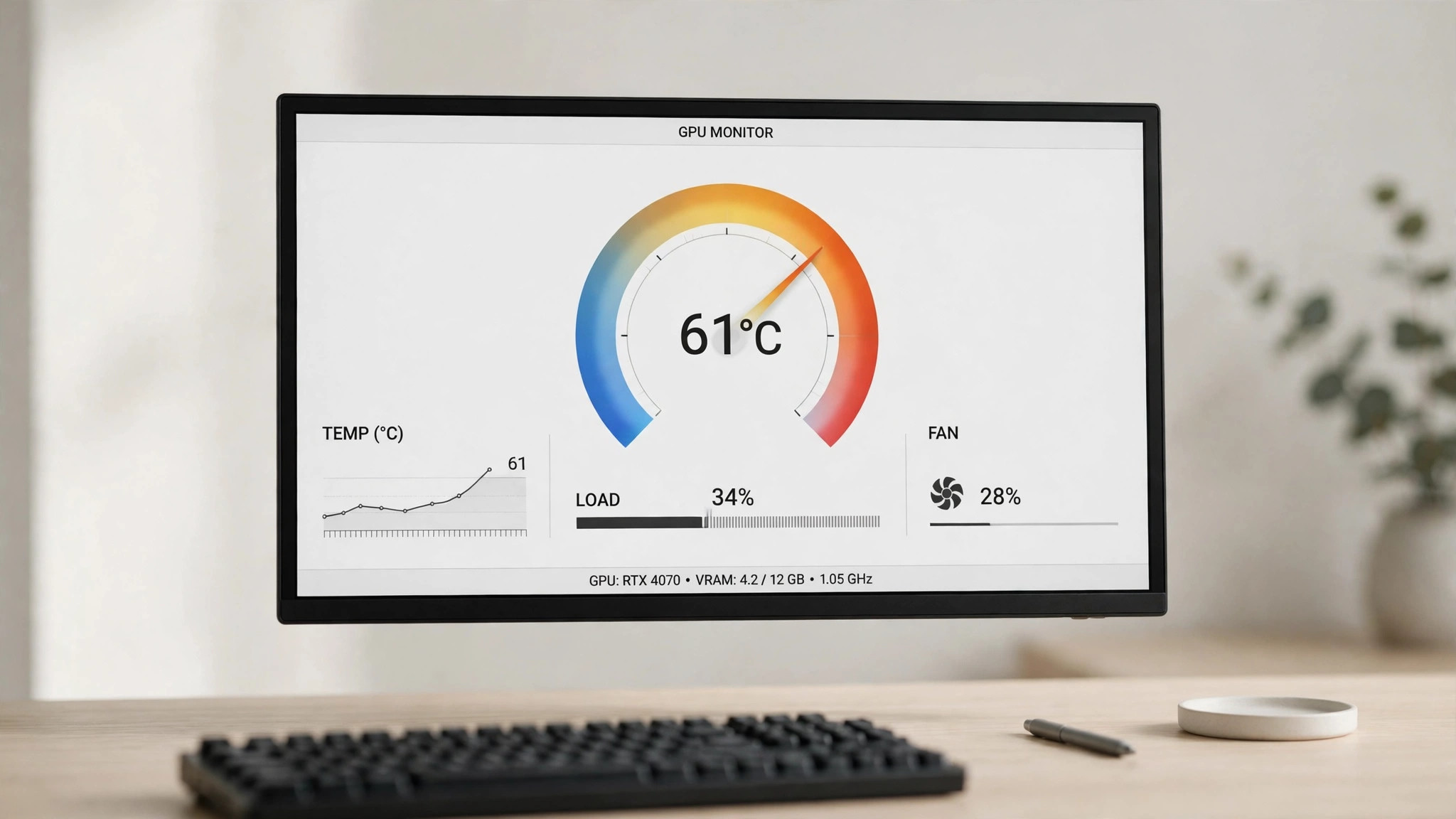
In most cases, no. At Quality mode, DLSS often looks as good as native resolution, and in some games it looks better, because the AI rebuilds edges more cleanly than the game’s own anti-aliasing. At Performance mode, the picture is softer, and you may see shimmer on thin objects such as fences or wires. This is more visible at 1080p, where there are fewer pixels to work with. DLSS also lowers the load on the card, which can lower the temperature, so it is worth learning how to check your GPU temperature while gaming when you first turn it on.
The best way to judge is to try it yourself. Stand still in a game, look at a detailed scene, and switch DLSS on and off. If you cannot see a difference while playing, keep it on and enjoy the extra frames. If the picture looks soft to you, move up to Quality mode or turn DLSS off for that game.
DLSS vs FSR vs XeSS
DLSS is Nvidia’s version, FSR is AMD’s, and XeSS is Intel’s. FSR works on almost any card, including Nvidia and AMD, because it does not need special AI hardware. XeSS works best on Intel Arc cards but also runs on other cards. In most games, DLSS gives the sharpest picture, because it uses the Tensor cores and the AI model. FSR has caught up a lot in newer versions, and it is the best choice if you do not have an RTX card. You can compare how cards rank in the Tom’s Hardware GPU hierarchy to see which cards support each technology.
If you have an RTX card, use DLSS. If you have an AMD or Intel card, use FSR or XeSS. You cannot mix them: a game will only offer the upscalers it supports, and you pick one. The good news is that most new games support at least two of them, so you are rarely stuck without an upscaling option.
Is DLSS Worth Turning On?
For most players, yes. DLSS gives you free frame rate, and at Quality mode the picture is hard to tell apart from native resolution. It is most useful in heavy games, at 1440p or 4K, or when you turn on ray tracing, which is very demanding. In those cases, DLSS can be the difference between a smooth game and a slow one. You can read more about ray tracing in our guide on what is ray tracing in gaming explained simply.
There are two times to turn it off. First, if you play fast competitive games at 1080p, where you already have plenty of frames and the picture softness is more visible. Second, if you are already running at your monitor’s full frame rate and the game is smooth, you do not need the extra speed. In those cases, native resolution is the sharper choice.
Conclusion
DLSS is a smart way to get more frames without losing picture quality. It renders the game smaller, then uses AI on the card’s Tensor cores to rebuild a sharp full-resolution picture. If you have an RTX card, turn it on in Quality mode and see the difference for yourself. Now that you know what is DLSS and how does it work, you can pick the right mode for each game and get the best mix of speed and sharpness.
Frequently Asked Questions
Does DLSS work on any graphics card?
No. DLSS needs an Nvidia RTX card with Tensor cores. AMD and Intel cards use FSR and XeSS instead, which work in a similar way. If you have a GTX card, DLSS is not available, but some games offer FSR as an alternative.
Does DLSS increase FPS?
Yes. DLSS can raise the frame rate a lot, because the game renders at a lower resolution. How much depends on the game, the mode, and the resolution. At Quality mode the boost is smaller, and at Performance mode it is bigger. Pair it with ray tracing for the biggest gain.
Is DLSS better than native resolution?
Sometimes. At Quality mode, DLSS can look as good as native, and in some games it looks sharper, because the AI rebuilds edges cleanly. At lower modes, native resolution is sharper. The best test is to compare them in the same scene in your game.
Does DLSS work with ray tracing?
Yes, and this is where DLSS helps the most. Ray tracing is very heavy, so it can cut the frame rate a lot. DLSS gives back many of those frames, so you can keep ray tracing on and still play smoothly. Many games turn DLSS on automatically when you enable ray tracing.
Should I use DLSS Quality or Performance mode?
Use Quality mode if you want the sharpest picture and you already have a decent frame rate. Use Performance mode if you need more speed, for example at 4K or with heavy ray tracing. Try Quality first, and only drop to Performance if the frame rate is still too low.
Henry is the founder and writer behind GPUGuides, based in Los Angeles, California, USA. He writes practical, step-by-step GPU guides in plain English to help gamers and PC owners get the best out of their graphics cards.

One thought on “What Is DLSS and How Does It Work”