
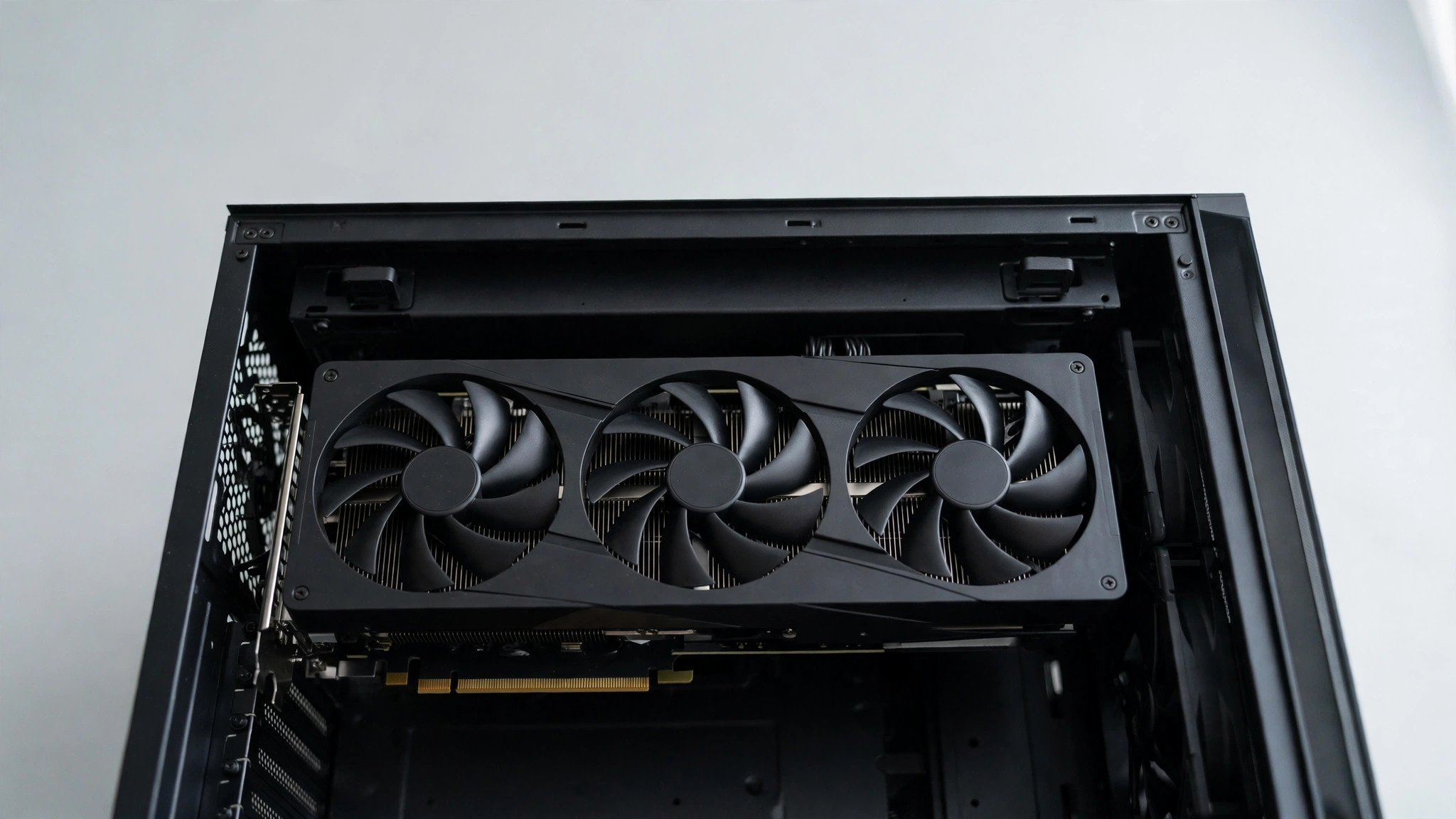
You open the side panel and notice the graphics card fan is not moving at all. No spin, no sound, nothing. It is natural to worry that something is broken, and the question that follows is a common one: GPU fan not spinning at idle is it normal? In most cases, yes. A still fan at idle is normal, and the card is doing it on purpose to stay quiet.
Most modern graphics cards stop their fans when the card is cool. The card only needs active cooling when it is working hard, so the fans wait until the temperature rises. This guide explains why the fan stops, how to check that it still works, and when a still fan is a real problem.
Why Is My GPU Fan Not Spinning at Idle?
A fan that sits still at idle is usually following a setting, not failing. These are the reasons it happens.
Zero RPM Mode
Most graphics cards made in the last few years have a zero RPM mode. The fans stay off until the card reaches a set temperature, often around 50 to 60 degrees. Below that point, the card cools itself with the heatsink alone, and the fans do not need to spin. When the temperature rises, the fans start on their own.
The Card Is Cool Enough
At idle, a graphics card does very little work. It draws the desktop, a browser window, or a video, and that takes only a small amount of power. The temperature often sits between 30 and 45 degrees, which is cool enough that the heatsink can handle it without any fan. If the room is cool and the case has good airflow, the fan may stay off for a long time.
The Fan Only Spins Under Load
The fan is tied to the temperature, not to the power button. It starts when the card gets warm and stops when the card cools down again. That is why you may see the fan spin for a few seconds when the PC starts, then stop once Windows loads and the card cools. The same thing happens after a game: the fan keeps spinning for a while, then stops when the card is cool.
Semi-Passive Cooling
Card makers call this feature semi-passive cooling, or 0dB mode. It keeps the PC silent during light work, such as browsing the web or watching a video, and it also makes the fans last longer, because they spend less time spinning. You can turn it off in the card’s software if you prefer the fans to spin all the time, but most people leave it on.
Is It Normal for the GPU Fan to Stay Still at Idle?
Yes, in most cases it is normal. A still fan at idle is normal when the temperature is low, usually under 50 degrees, and the fan starts as soon as the card gets warm. You can check this in a few minutes with the steps below, and if the fan spins up under load, the card is working as it should.
It is not normal when the card is hot and the fan still does not move, or when the fan never spins, even in a demanding game. A fan that stays still while the temperature climbs past 80 degrees is a problem, and so is a fan that rattles, clicks, or wobbles. The table below sums it up.
| What You See | Normal or Not | What to Do |
|---|---|---|
| Fan still, temperature under 50 degrees | Normal | Nothing, the card is cool |
| Fan still, temperature over 80 degrees | Not normal | Check the fan setting and the driver |
| Fan spins up in games | Normal | Nothing, the fan works |
| Fan never spins, even in games | Not normal | Test the fan and check the power cable |
| Fan rattles or wobbles | Not normal | Clean the fan and check the bearing |
How to Check If Your GPU Fan Is Working
A still fan at idle does not tell you much on its own. These four checks show whether the fan still works when the card needs it.
Step 1: Check the Temperature
Open a monitoring tool such as MSI Afterburner or GPU-Z and look at the temperature and the fan speed. At idle, the temperature should sit between 30 and 50 degrees, and the fan speed should read 0 RPM or 0 percent. That combination is normal. If the temperature is above 60 degrees at idle and the fan still reads 0, something is wrong. Our guide on how to check GPU temperature while gaming on Windows 11 shows how to read these numbers.

Step 2: Put the Card Under Load
Start a game or a benchmark and watch the fan. As the temperature climbs past 50 to 60 degrees, the fan should start to spin. If it starts and the temperature levels off, the fan is working fine, and the still fan at idle was just zero RPM mode doing its job. If the fan never starts while the temperature keeps climbing, stop the game and move on to the fixes below.
Step 3: Check the Fan Setting in Software
Open MSI Afterburner and look at the fan speed setting. If it is set to Auto, the card controls the fan itself, and a still fan at idle is expected. If the fan speed is set to a fixed low number by hand, the fan may be following that setting instead. Set it back to Auto and test again. Also check the card maker’s own software, because it can override Afterburner.
Step 4: Look at the Fan Curve
In MSI Afterburner, open the settings and look at the fan curve. The curve shows the fan speed at each temperature. If the first points on the curve are set to 0 percent up to 60 degrees, the fan is meant to stay off below that temperature. That is normal. If the curve says the fan should be spinning at 50 percent at 40 degrees but the fan is still, the fan or the setting is at fault. Our guide on how to fix loud GPU fan noise while gaming explains how fan curves work.
When a Still Fan Is a Problem
A still fan becomes a problem when the card cannot cool itself. These are the signs to watch for.
The Card Is Hot and the Fan Still Does Not Spin
If the temperature passes 80 degrees and the fan is still not moving, the card is in danger of overheating. The card will slow itself down to protect the chip, and your games will stutter or lose frame rate. Do not keep playing in this state. Turn the game off, let the card cool, and work through the fixes below.
The Fan Never Spins, Even in Games
A fan that never spins, even when the card is under full load, is not in zero RPM mode. It may have a loose plug, a broken wire, or a dead motor. Check the fixes below, and if the fan still does not move, it likely needs to be replaced or checked under warranty.
Only One Fan Spins
Most cards have two or three fans, and they should all spin together. If one fan stays still while the others spin, that fan may be stuck on a cable, blocked by dust, or broken. Turn the PC off and check that nothing is touching the blades. A fan that is blocked by a loose cable can often be fixed by moving the cable out of the way.
The Fan Makes Noise but Does Not Move
A fan that hums, clicks, or twitches but does not spin has power but cannot turn. Dust or a small object may be jamming the blades, or the bearing may have seized. Turn the PC off, clean around the fan, and try to spin it by hand. If it feels stuck or rough, it needs cleaning or a replacement.
How to Fix a GPU Fan That Will Not Spin
If the fan does not spin even when the card is hot, work through these fixes in order. Test the fan after each step.
Step 1: Turn Off Zero RPM Mode
Zero RPM mode may be keeping the fan off. Open the card maker’s software or MSI Afterburner, find the zero RPM or 0dB setting, and turn it off. Save the setting and watch the fan. If it starts to spin, the mode was the cause, and you can turn it back on later if you want a quiet PC. If it still does not spin, the problem is elsewhere.
Step 2: Set a Manual Fan Speed
In MSI Afterburner, set the fan speed by hand to 50 percent and apply it. The fan should start right away. If it does, the fan motor works, and the problem is the automatic setting or the fan curve. Set a custom fan curve that starts the fan at a low temperature, and test it in a game. If the fan does not move at 50 percent, the fan itself or its connection is at fault.
Step 3: Update the Driver
A driver bug can stop the fan from working. Download the latest driver from the card maker’s website and install it with the clean install option. Restart the PC and test the fan again under load. Our guide on how to update GPU drivers safely for Nvidia, AMD, and Intel shows the safe way to do this, and our guide on how to fix GPU driver crash black screen Windows 11 covers what to do if a bad driver leaves you with a black screen.
Step 4: Check the Power Cable and the Fan Plug
Turn the PC off and open the case. Check that the power cables are pushed firmly into the card, and look for the small fan plug on the card itself. If the plug is loose, push it back in gently. Also check that no cable is pressing on the fan blades. A fan that cannot turn because a cable is in the way will not spin, no matter what the software says.
Step 5: Clean the Fan and Check for Damage
Clean the dust from the fan blades and the heatsink with compressed air, holding the blades still while you blow. Try to spin the fan by hand. It should turn freely and smoothly. If it feels stuck, rough, or wobbly, the bearing has failed, and the fan needs to be replaced. Our guide on how to clean a graphics card safely without damaging it shows the safe way to clean it. If the card is still under warranty, contact the seller or the maker before you replace any parts.
How to Keep the Fan Working Well
A little care keeps the fan working for years. Clean the dust from the case every few months, and keep the PC off the floor where dust gathers. Do not let the fan spin freely when you clean it with compressed air, because that can wear the bearing. Check the temperature after every driver update, and keep the fan curve you set, because a new driver can reset it. If you hear a new rattle or click, check the fan right away instead of waiting, because a small problem is easier to fix than a dead fan.
Conclusion
A graphics card fan that sits still at idle is usually nothing to worry about. In this guide you saw that a GPU fan not spinning at idle is it normal in most cases, because zero RPM mode keeps the fans off until the card gets warm. The quick test is simple: check the temperature, put the card under load, and see if the fan starts.
If the fan spins up under load and the temperature stays in a safe range, your card is working as it should. If the fan never spins, even when the card is hot, work through the fixes above, and check the warranty if the fan itself has failed. A quiet card at idle is a normal card, not a broken one.
Frequently Asked Questions
Should GPU fans spin all the time?
No. Most modern cards stop their fans at idle to stay quiet. The fans start when the card gets warm, usually around 50 to 60 degrees. A fan that is still at idle and spins up in games is working as it should.
At what temperature do GPU fans start spinning?
Most cards start the fans between 50 and 60 degrees, but the exact point depends on the card model and the fan curve. You can see the start point in the fan curve in MSI Afterburner, and you can change it if you want the fans to start earlier.
Is it bad if my GPU fan never spins?
It is bad if the fan never spins even when the card is hot. A fan that stays still while the temperature climbs past 80 degrees cannot cool the card, and the card will slow down or overheat. Test the fan under load, and if it never moves, check the fan setting, the driver, and the fan plug.
How do I make my GPU fan spin at idle?
Turn off zero RPM mode in the card’s software, or set a custom fan curve in MSI Afterburner with a low fan speed at low temperatures. For example, set the fan to 30 percent at 30 degrees. The fan will then spin all the time, but the PC will be louder at idle.
Why does my GPU fan spin for a few seconds and then stop?
The fan spins at startup to test itself, then stops when the card is cool and zero RPM mode takes over. This is normal. The fan will start again when the card gets warm, such as when you open a game.
Can a still GPU fan damage my graphics card?
A still fan at idle does not damage the card, because the card is cool and the heatsink can handle the heat on its own. Damage only happens when the fan stays still while the card is hot. That is why you should check the temperature and test the fan under load.
Henry is the founder and writer behind GPUGuides, based in Los Angeles, California, USA. He writes practical, step-by-step GPU guides in plain English to help gamers and PC owners get the best out of their graphics cards.

