
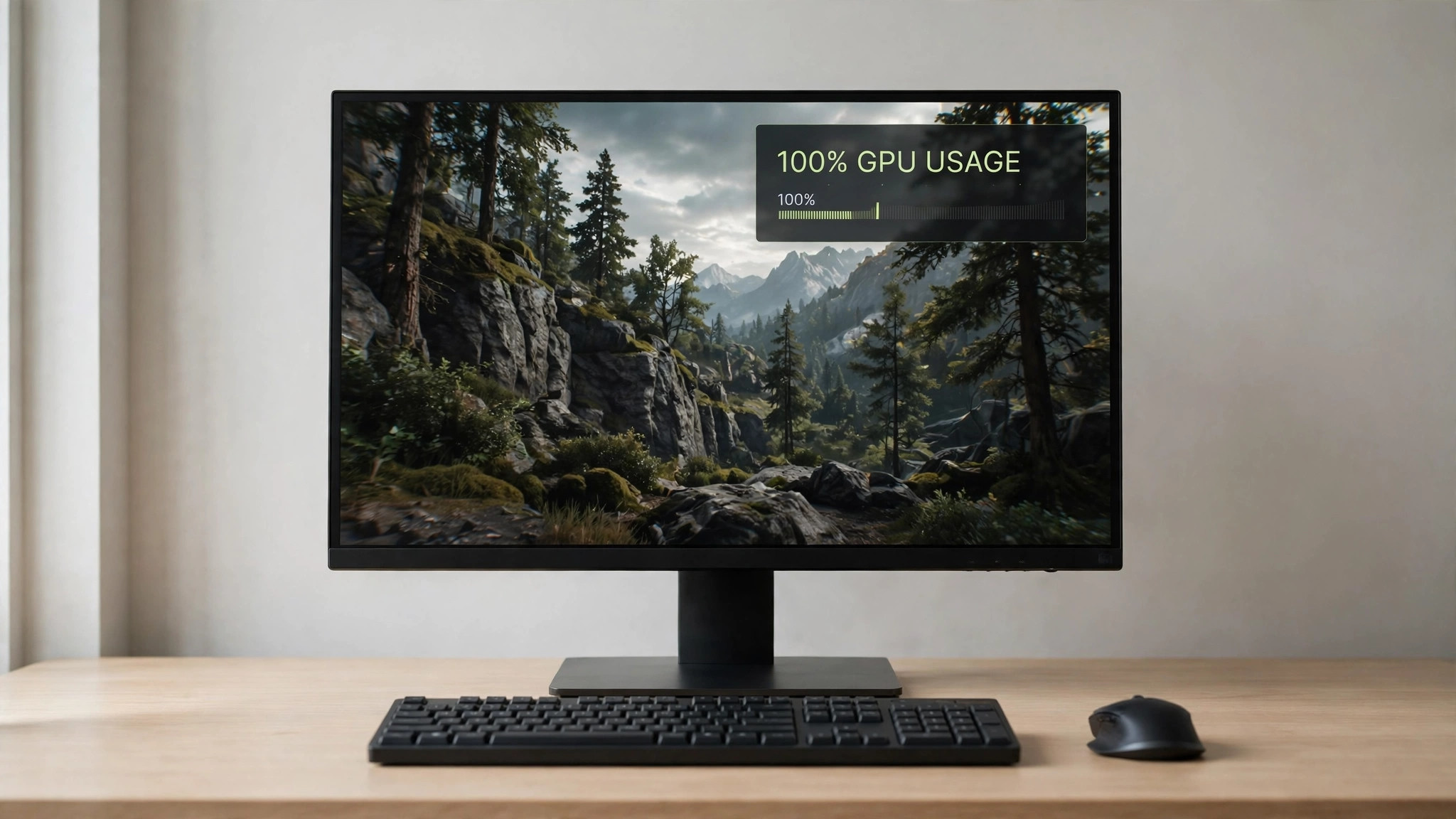
You open your performance overlay during a game and see it: GPU usage 100%. Your first thought is that something is wrong. Is the card about to fail? Is the game too heavy for it? In most cases, the answer is no. A graphics card that runs at 100% while gaming is usually doing exactly what it was built to do. If you are wondering why is my GPU usage 100% while gaming is it normal, this guide explains what the number means, when it is a good sign, and when it points to a real problem.
What GPU Usage Means
GPU usage is a percentage that shows how much of your graphics card’s power a game is using at that moment. At 0%, the card is idle. At 50%, the game uses about half of what the card can do. At 100%, the game is using all of the card’s power. The number changes all the time as the game shows different scenes.
The card decides how hard to work based on the game. A simple game at low settings may use only 30% of the card. A demanding game at high settings can push it to 100%. The usage number on its own does not tell you if something is wrong. You need to look at it together with your frame rate and your temperature.
Is 100% GPU Usage Normal While Gaming?
Yes, 100% GPU usage is normal in most games, and it is often a good sign. It means your graphics card is the part doing the work, and your CPU is keeping up with it. Game makers design their games to use the graphics card fully, because that is how you get the best picture and the smoothest play. If your card never went above 50%, you would be leaving performance on the table.
You bought the card to play games, and 100% usage means the game is using the full power you paid for. As long as the game runs smoothly and the card stays at a safe temperature, 100% usage is nothing to worry about. The rest of this guide shows you how to tell the difference between normal full use and a real problem.
When 100% GPU Usage Is a Good Sign
Full GPU usage is a good sign when the game feels smooth. If you see 100% usage and your frame rate is high and steady, your card is working well. It is also normal when you turn the graphics settings up. Higher settings ask the card to do more work, so usage climbs. The same is true for high resolutions. A game at 1440p or 4K will use far more of the card than the same game at 1080p.
| GPU usage | Frame rate | Temperature | What it means |
|---|---|---|---|
| 100% | High and steady | Under 85°C | Normal, the card is working well |
| 100% | Low or stuttering | Under 85°C | The card is the limit, lower the settings |
| 100% | Low or stuttering | Over 85°C | Heat problem, clean the card and check airflow |
| Under 50% | Low | Normal | The CPU may be holding the card back |
Use the table as a quick guide. The frame rate and the temperature tell you more than the usage number alone. A card at 100% with a steady frame rate and normal heat is a card doing its job.
How to Check Your GPU Usage While Gaming
The easiest way is Windows Task Manager. Press Ctrl + Shift + Esc, click the Performance tab, and pick GPU. You will see the usage graph, the temperature, and the memory use. For numbers on screen while you play, use an overlay. MSI Afterburner with RivaTuner shows usage, temperature, and frame rate in the corner of your game. Nvidia users can also use the GeForce Experience overlay.
For more detail, the free tool GPU-Z from TechPowerUp shows the card’s clock speed, temperature, power use, and memory use in one window. You can download it from the TechPowerUp GPU-Z page. Watch the numbers for a few minutes during a game. A single reading can mislead you, because usage jumps up and down with each scene.

When 100% GPU Usage Is a Problem
Full usage is a problem only when it comes with other symptoms. If the game runs well, ignore the number. If you see the signs below, something needs attention.
Stuttering and Low FPS
If the card is at 100% and the game stutters or the frame rate stays low, the card is too weak for the settings you picked. The game is asking for more than the card can give. Lower the graphics settings or the resolution, and the frame rate should climb. If it does not, check the next two signs as well.
High Temperatures
Usage at 100% with a temperature over 85 degrees Celsius is a warning. A hot card slows itself down to stay safe, and that makes the stutter worse. Dust in the heatsink is a common cause. Our guide on how to clean a graphics card safely without damaging it shows the safe way to fix it. Also check that your case fans work and the vents are clear. You can check your GPU temperature while gaming to see if the clean helped.
The Game Uses 100% Even in Menus
If usage stays at 100% in menus or on the desktop, something else is using the card. Open Task Manager and look at which apps use the GPU. A game with no frame rate cap can run at hundreds of frames per second in a simple menu, which pushes usage to 100% for no reason. Turn on a frame rate cap in the game settings. If an app you do not know is using the GPU, close it and check what it is before you run it again.
The Card Is Old for the Game
An older card with a new, demanding game will sit at 100% and still give low frame rates. That is the card’s limit, not a fault. Lowering the settings is the only free fix. If you want higher settings, you need a stronger card. You can compare your card with newer ones on the Tom’s Hardware GPU hierarchy to see where it stands.
What to Do If 100% GPU Usage Causes Problems
If full usage comes with stuttering or heat, try these fixes in order. Most of them take only a few minutes, and you may not need to go past the first one.
Lower the Graphics Settings
Turn down the settings that cost the most power, such as shadows, anti-aliasing, and ray tracing. These ask the card to do a lot of extra work for a small visual gain. Keep textures high if you have enough VRAM, because textures use memory more than raw power. Lower the resolution if the game still stutters. Each step down gives the card room to breathe, and the frame rate should climb.
Cap the Frame Rate
Cap the frame rate at your monitor’s refresh rate, such as 60 or 144 frames per second. Without a cap, the card works as hard as it can to make as many frames as possible, even when your monitor cannot show them. A cap lets the card rest between frames, which lowers usage, heat, and fan noise. You can set the cap in the game settings, or in the Nvidia or AMD control panel.
Clean the Card and Check Airflow
Dust in the heatsink makes the card run hotter at the same usage, and a hot card slows itself down. Our guide on how to clean a graphics card safely without damaging it shows the safe way to clear it out. Also check that your case fans spin and the vents are clear. A card in a case with no airflow will run hot no matter how clean it is. You can check your GPU temperature while gaming before and after the clean to see the change.
Update the Driver
A new driver can fix bugs that push usage too high in a certain game. If your driver is months old, update it from the official source and test the game again. Read our guide on how to update GPU drivers safely for Nvidia, AMD, and Intel for the safe steps. If the problem started right after a driver update, roll back to the older driver instead.
GPU Usage 100% vs CPU Bottleneck
GPU usage and CPU usage tell a story together. Open Task Manager and look at both numbers while you play. If the GPU is at 100% and the CPU is at 40 to 60%, the graphics card is the limit. That is normal, and it means your CPU is keeping up. The card is doing all the work it can, and the game runs as well as the card allows.
If the CPU is at 100% and the GPU is at 50% or less, the CPU is the limit. It cannot feed the card fast enough, so the card waits for work. This is called a CPU bottleneck. The fix is different: lower the settings that load the CPU, such as crowd size and physics, or plan a CPU upgrade. Our guide on what a GPU bottleneck is and how to fix it explains both cases in detail.
Conclusion
GPU usage at 100% while gaming is normal in most cases. It means your card is working hard, and as long as the frame rate is steady and the temperature stays under 85 degrees, there is nothing to fix. Check the usage together with the frame rate and the temperature, and only act when you also see stuttering or heat. Now that you know why is my GPU usage 100% while gaming is it normal, you can read that number with confidence instead of worrying about it.
Frequently Asked Questions
Is 100% GPU usage bad for my graphics card?
No. A graphics card is built to run at full load for hours. Running at 100% does not wear it out faster, as long as the temperature stays in a safe range. The fans and the chip are made for this kind of work. Heat is the real enemy, not usage.
Why is my GPU at 100% but my CPU only at 30%?
That is normal in most games. Games lean on the graphics card far more than on the CPU, so the card works hard while the CPU has room to spare. It means your CPU is strong enough for the game, and the card is the part setting the frame rate.
Should I worry if my GPU usage is 100% in every game?
Not if the games run smoothly and the temperature is normal. Some games are simply demanding, and a card at 100% in all of them just means the card is the limit in your PC. Worry only if the frame rate is low, the game stutters, or the card runs hotter than 85 degrees.
Can 100% GPU usage cause lag?
It can, but only when the card cannot keep up with the settings. If the card is at 100% and the frame rate is low, the game will feel laggy. Lower the graphics settings or the resolution, and the card will have room to deliver smoother frames.
Why does my GPU usage drop to 0% sometimes?
Usage drops to near 0% when the card has nothing to do, such as on the desktop, in a loading screen, or when a game is paused. It also drops if the game waits on the CPU or on loading files. Short drops are normal. If usage stays at 0% while you play, the game may be using the wrong graphics card, so check your display settings.
Does VSync affect GPU usage?
Yes. VSync caps the frame rate at your monitor’s refresh rate, so the card does less work once it reaches that rate. With VSync on, usage often drops below 100% because the card waits between frames. With VSync off, the card works as hard as it can, and usage often climbs to 100%.
Henry is the founder and writer behind GPUGuides, based in Los Angeles, California, USA. He writes practical, step-by-step GPU guides in plain English to help gamers and PC owners get the best out of their graphics cards.

