
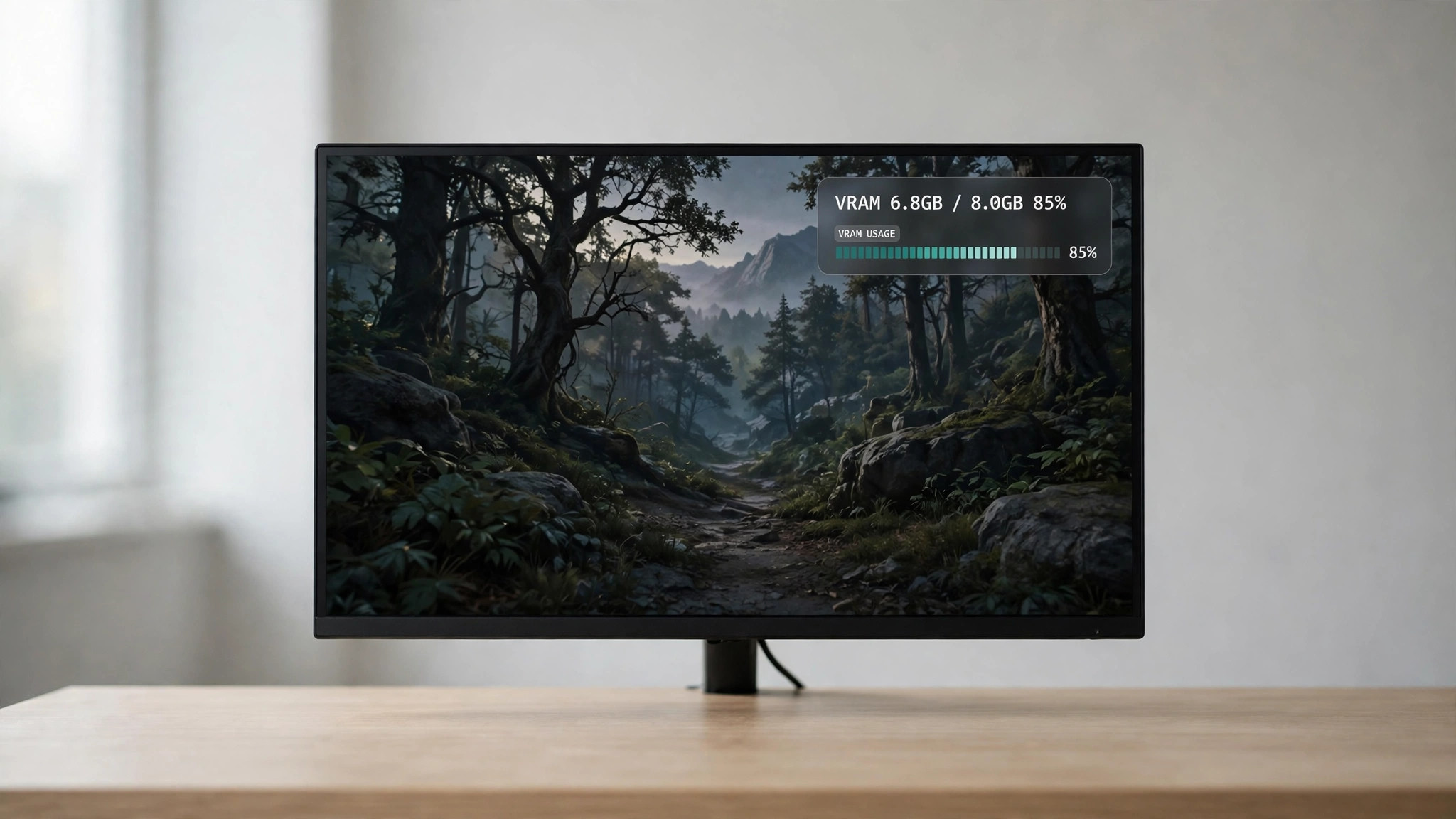
Have you ever wondered why a game stutters even though your frame rate looks fine on paper? The answer is often video memory. When your graphics card runs out of VRAM, it has to shuffle textures and data back and forth to your system RAM, and that is exactly when the hitching starts. The good news is that checking how much VRAM your games actually use is easy, and it takes less than five minutes to set up.
In this guide, you will learn how to check GPU VRAM usage while gaming on Windows. We will show you five different methods, from free overlay tools to the built-in Task Manager, explain how to read the numbers, and explain what to do when your VRAM is full. Whether you have an 8GB card that feels tight in new games or a 16GB card you want to put to work, this guide will help you see exactly what is going on.
What Is VRAM and Why Should You Watch It?
VRAM, or video random access memory, is the fast memory built into your graphics card. It stores the textures, geometry, shaders, and frame buffers your GPU needs to draw each frame. The more detailed a game is, the more VRAM it needs. High-resolution textures, 4K resolution, and ray tracing all push VRAM usage up quickly. If you want the full explanation, our guide on what VRAM is breaks down how it works and why it matters for gaming.
VRAM is different from the memory you see in Task Manager under normal system RAM. Your graphics card has its own dedicated pool, and when that pool is full, performance suffers in a very specific way: frame rates can stay high on average, but you get sudden hitches and stutters as the card swaps data in and out. That is why watching VRAM usage matters. A card with too little VRAM for your settings will feel worse than a slower card with enough memory, because stuttering is far more annoying than a slightly lower average frame rate.
How Much VRAM Do Games Actually Use?
VRAM usage depends on the game, the resolution, and the texture settings. A competitive shooter at 1080p with medium textures might use 3 to 4GB, while a modern open-world game at 4K with ultra textures can use 12GB or more. Here is a rough guide to what to expect at 1440p with high settings in 2026.
| Type of Game | Typical VRAM Usage at 1440p High |
|---|---|
| Competitive shooters (Valorant, CS2, Fortnite) | 3 to 5 GB |
| Popular AAA games (Cyberpunk 2077, Elden Ring) | 6 to 9 GB |
| Open-world games with ultra textures | 9 to 12 GB |
| 4K with ultra textures and ray tracing | 12 to 16 GB or more |
Keep in mind that games often reserve more VRAM than they strictly need. If a game reports 9GB used on a 12GB card, it may simply be using what is available rather than what it requires. The number that matters is whether the game stutters. High usage on its own is not a problem. High usage combined with hitching is.
How to Check GPU VRAM Usage While Gaming: 5 Methods
There is no single best way to check VRAM usage. The right method depends on your graphics card and whether you want a live overlay, a quick check after playing, or detailed logging. Here are five methods that work, starting with the most useful.
Method 1: MSI Afterburner and RivaTuner (Best Overall)
MSI Afterburner is free, works with NVIDIA, AMD, and Intel cards, and gives you the most detail. Download it from MSI and install RivaTuner Statistics Server when the installer offers it. Open Afterburner, click the gear icon to open Settings, go to the Monitoring tab, and tick the boxes for GPU memory usage, GPU temperature, and framerate. For each one, tick the box labelled Show in On-Screen Display. Then start your game. You will see a small overlay in the corner of the screen showing live VRAM usage in megabytes, along with the other numbers you chose. This is the best method for most people because it shows VRAM, temperature, and frame rate together in real time, so you can see exactly what happens in the moments when a game stutters.
Method 2: NVIDIA Overlay
If you have an NVIDIA card, you already have a built-in option. Open the NVIDIA App, go to Settings, and turn on the in-game overlay. Press Alt+R during a game to bring up the performance overlay, which shows GPU usage, temperature, power, and memory usage. The memory figure is your VRAM usage. It is simpler than Afterburner and does not need any extra software, but it shows less detail and cannot log data for later. If you want a deeper look at performance testing in general, our guide on how to test GPU performance and benchmark it correctly explains how to use overlays alongside benchmark software.
Method 3: AMD Software Overlay
AMD users can do the same thing with AMD Software. Open AMD Software, go to Performance, then Metrics, and turn on the overlay. Press Ctrl+Shift+O in a game to show it. The overlay displays GPU memory usage, GPU utilisation, temperature, fan speed, and FPS. You can also open the Performance tab after playing and look at the recorded metrics graph, which shows how VRAM usage changed over the whole session. That history view is genuinely useful, because it shows the peak usage rather than just the current value.
Method 4: Windows Task Manager
Task Manager is the quickest method and needs no installation at all. Start your game, then press Ctrl+Shift+Esc to open Task Manager, or Alt+Tab out of the game and open it. Go to the Performance tab and click on GPU. You will see several graphs, including Dedicated GPU memory usage. This shows how much of your card’s VRAM is currently in use, along with the total amount available. The downside is that you cannot see the number while you are actually playing, because Task Manager sits behind the game window. It is best used for a quick check, or for comparing usage before and after changing a setting.
Method 5: In-Game Settings and VRAM Meters
Some games show VRAM usage directly in their graphics settings. Call of Duty, Resident Evil 4, and several other titles display a VRAM usage bar that fills up as you raise texture quality and resolution. This is a useful estimate before you even start playing, because it tells you whether your chosen settings will fit in your card’s memory. Treat these meters as a rough guide rather than an exact measurement, because different games calculate the number differently. Still, if the meter is in the red, you can expect stuttering and should lower texture quality before you play.
How to Read the VRAM Numbers
Once you have an overlay running, you need to know what the numbers actually mean. VRAM usage is usually shown in megabytes or gigabytes, and it changes constantly as you move through a game. The most important number is the peak: the highest usage you see during a demanding scene. A game that uses 6GB in a quiet corridor and 8.5GB in a busy city is an 8.5GB game for practical purposes.

Dedicated, Shared, and Total Memory
Task Manager and some other tools show more than one memory number, which can be confusing. Dedicated GPU memory is the VRAM on your graphics card, and it is the number that matters. Shared GPU memory is system RAM that the graphics driver can borrow if it runs out of VRAM, but it is much slower, so a game that relies on it will stutter. Total GPU memory is simply the two added together. When you check VRAM usage, always look at the dedicated figure and compare it with your card’s total VRAM. If you are unsure how much VRAM your card has, our guide on how to check what graphics card you have also shows where to find the memory specification.
When Is VRAM Usage Too High?
As a rule of thumb, you want to stay below about 90 percent of your card’s VRAM during gameplay. A little headroom lets the game load new textures smoothly as you move into new areas. Once usage hits 100 percent, the card starts swapping data to system RAM, and that is when stuttering begins. The exception is games that reserve VRAM aggressively: some titles will fill almost all available memory even when they do not need it. The real test is always how the game feels. If usage is at 95 percent but the game is smooth, you are fine. If usage is at 100 percent and you feel regular hitches, you need to free up memory.
Signs Your VRAM Is Running Out
Running out of VRAM has a distinctive set of symptoms. The most obvious is stuttering: the game runs smoothly for a few seconds, then freezes briefly, then runs smoothly again. This pattern repeats as the card swaps textures in and out of memory. You may also notice textures that load late or appear blurry for a few seconds after you enter a new area, which is called texture pop-in. In severe cases, the game may drop to very low frame rates in busy scenes, crash to the desktop, or show corrupted textures. If you see these symptoms and your VRAM usage is at or near 100 percent, you have found your problem. If usage is low but the game still stutters, the cause is something else, such as a CPU bottleneck or a temperature problem. Our guide on checking GPU temperature while gaming will help you rule out overheating.
How to Reduce VRAM Usage
If your VRAM is full, you do not necessarily need a new graphics card. A few settings changes can free up gigabytes of memory with barely any visible difference.
- Lower texture quality first. Textures are the biggest single user of VRAM. Dropping from Ultra to High textures can save 2 to 3GB and is barely noticeable during gameplay.
- Reduce resolution or use upscaling. Rendering at 4K uses roughly twice the VRAM of 1440p. If your card supports it, turn on DLSS or FSR upscaling, which renders at a lower internal resolution and upscales the image. This cuts VRAM usage while keeping the picture sharp.
- Turn down shadow quality and ray tracing. Ray tracing in particular is very hungry for memory. Switching ray tracing off or to a lower setting can free up a large amount of VRAM in supported games.
- Lower anti-aliasing. Heavy anti-aliasing modes such as MSAA 8x add to memory usage. Switching to a lighter mode or to temporal anti-aliasing saves memory with little visual loss.
- Close other GPU apps. A browser with hardware acceleration, a streaming app, or a second game running in the background all use VRAM. Close them before you play.
- Restart the game after changing settings. Some games do not fully release VRAM when you change settings mid-session. A quick restart makes sure the new settings take full effect.
Make one change at a time and check the overlay again. That way you learn exactly which setting costs the most memory in each game.
How Much VRAM Do You Need in 2026?
VRAM needs keep rising as games get more detailed, so here is a practical guide for buying or upgrading in 2026.
| Your Setup | Recommended VRAM |
|---|---|
| 1080p, competitive and older games | 8 GB is enough |
| 1080p, modern AAA games at high settings | 10 to 12 GB |
| 1440p, modern AAA games at high settings | 12 GB |
| 1440p with ray tracing, or 4K | 16 GB or more |
An 8GB card is still fine for 1080p gaming, but it is becoming tight at 1440p in the newest titles. If you are buying a new card and plan to keep it for several years, 12GB is the safer minimum, and 16GB gives you real headroom for 4K and future games. You can verify how much VRAM your current card has with a tool like GPU-Z, which lists the memory size and type on its main screen.
Conclusion
Checking GPU VRAM usage while gaming is simple once you have the right tool set up. MSI Afterburner gives you the most detail, the NVIDIA and AMD overlays are already on your system, and Task Manager works for a quick check. Watch the dedicated memory figure, look for the peak during demanding scenes, and remember that the real warning sign is stuttering at 100 percent usage, not just a high number. If your VRAM is full, lower texture quality, turn on upscaling, or reduce resolution before you think about buying a new card. A few minutes of monitoring can save you from upgrading hardware you do not actually need.
FAQs
How do I check VRAM usage while gaming on Windows 11?
The easiest way is MSI Afterburner with RivaTuner: enable GPU memory usage in the Monitoring settings and tick Show in On-Screen Display. You can also use the NVIDIA overlay with Alt+R, the AMD overlay with Ctrl+Shift+O, or open Task Manager with Ctrl+Shift+Esc and look at the GPU performance tab.
How much VRAM is normal while gaming?
It depends on the game and your settings. At 1080p, most games use 3 to 6GB. At 1440p with high settings, 6 to 10GB is normal, and at 4K with ultra textures, 12GB or more is common. Games often reserve more VRAM than they need, so a high number on its own is not a problem unless the game stutters.
Is 8GB of VRAM enough for gaming in 2026?
Yes, 8GB is still enough for 1080p gaming and for most games at 1440p with high settings. It can become tight in the newest AAA titles at 1440p with ultra textures or ray tracing, where you may need to lower texture quality. For 4K gaming or long-term future-proofing, 12GB or 16GB is a better choice.
What happens when VRAM runs out?
When VRAM runs out, the graphics card has to store textures in your much slower system RAM. This causes stuttering, texture pop-in, blurry textures that load late, and sometimes crashes. Lowering texture quality, resolution, or ray tracing settings will free up VRAM and usually fixes the problem immediately.
Does VRAM usage affect FPS?
VRAM usage does not directly set your frame rate, but running out of VRAM hurts smoothness. Average FPS may stay high while 1% lows collapse, which feels like regular hitches. That is why monitoring VRAM alongside FPS is important: the two numbers together tell you whether your card has enough memory for your settings.
Henry is the founder and writer behind GPUGuides, based in Los Angeles, California, USA. He writes practical, step-by-step GPU guides in plain English to help gamers and PC owners get the best out of their graphics cards.


2 thoughts on “How to Check GPU VRAM Usage While Gaming”