
You press the power button, the fans spin up, the screen lights up, and then you notice something is wrong. Your games run terribly, your monitor is stuck at a low resolution, or Device Manager shows no graphics card at all. A GPU not detected in Windows leaves the computer running on basic display drivers or integrated graphics, and everything feels slow and broken. The good news is that most of the time, the card itself is fine. A loose connection, a driver problem, or a BIOS setting is usually to blame, and all of those are fixable at home.
In this guide, you will learn why a GPU is not detected in Windows and how to fix it step by step. We will start with the quick checks that solve most cases in minutes, then move on to reseating the card, BIOS settings, and clean driver reinstalls. Work through the steps in order, and check after each one whether Windows can see your card again.
What Does “GPU Not Detected” Mean?
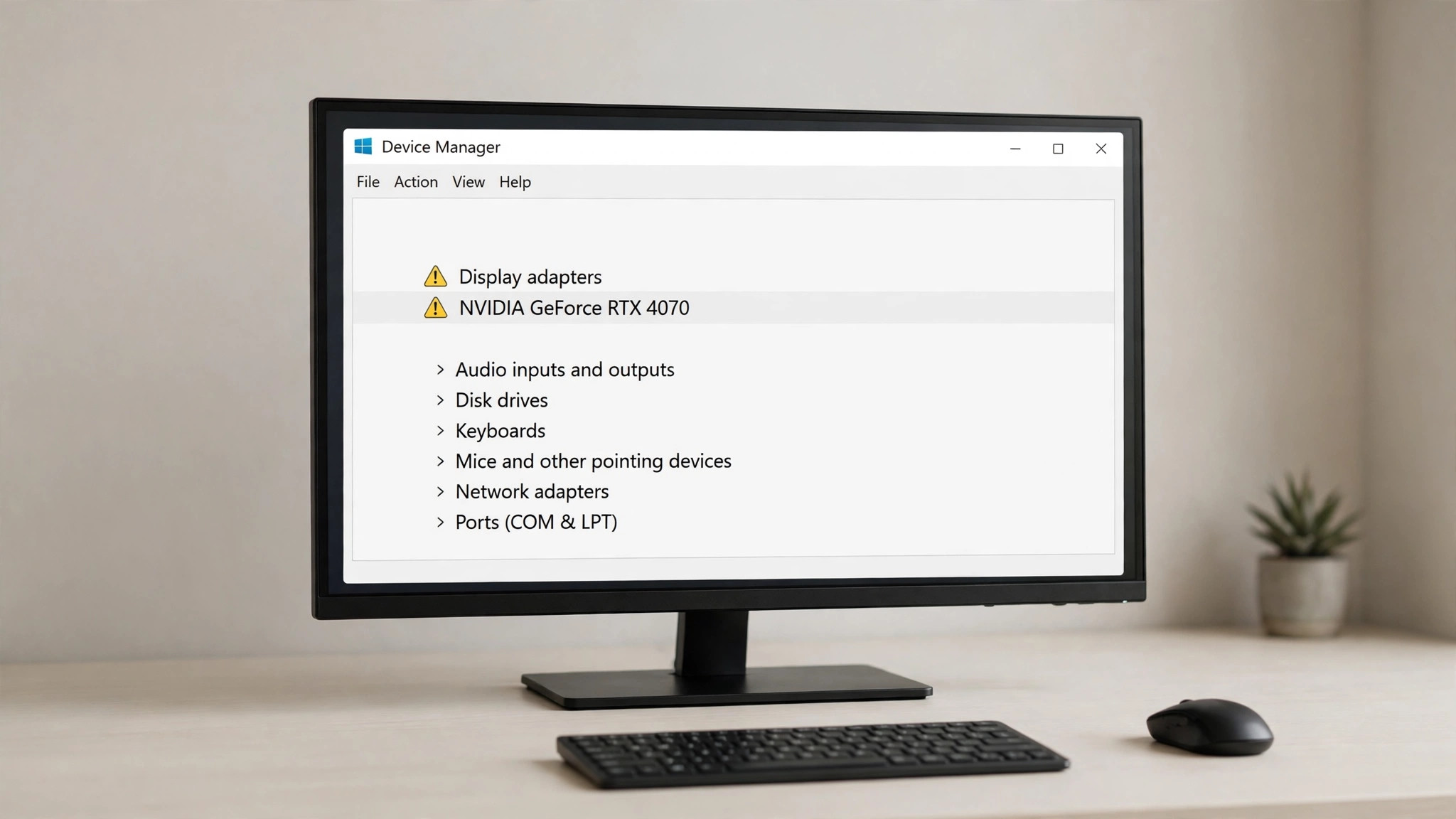
When people say their GPU is not detected, they usually mean one of three things. The first is that Windows does not list the graphics card in Device Manager at all, and instead shows only Microsoft Basic Display Adapter. The second is that the card appears in Device Manager but with a yellow warning triangle, which means Windows found it but cannot start it properly. The third is that the card is listed, but games and apps cannot use it, and the system behaves as if only integrated graphics exist. Each of these has slightly different causes, but the fixes overlap a lot, so the steps below cover all three.
It helps to know where the problem sits. A card that is not detected at all usually points to a hardware issue: a loose card, a missing power cable, or a BIOS setting. A card that is detected but has a warning usually points to a driver problem. A card that works in Device Manager but not in games usually points to a settings problem, such as the monitor being plugged into the wrong port. Keep that in mind as you work through the fixes.
First, Check the Obvious: Is the GPU Actually Installed?
Before you change any settings, check the physical basics. These sound too simple to be the problem, but they cause a surprising number of missing GPU reports, especially after a new build, a move, or a cleaning session.
Check the Monitor Cable
Make sure your monitor cable is plugged into the graphics card, not the motherboard. The video ports on the motherboard connect to your CPU’s integrated graphics, and if your monitor is plugged in there, Windows will use the integrated GPU and may not even show your graphics card properly. Look at the back of your PC: the graphics card ports are lower down, in a horizontal row on the card itself. Unplug the cable and plug it into the graphics card. If the screen goes black and comes back, you have found the problem.
Check the Power Cables
Most modern graphics cards need one or two power cables directly from the power supply. Open the case and check that every power connector on the top or side of the card is fully plugged in and clicks into place. A connector that looks plugged in but is slightly loose can stop the card from being detected. If your power supply has more than one PCIe power cable, use two separate cables rather than one cable split into two connectors, because a single cable can struggle to deliver enough power to a hungry card. Also check that the power supply switch at the back of the PC is on, and that the cable from the wall is secure.
How to Check If Windows Sees Your GPU
Before fixing anything, find out exactly what Windows can see. Press Win+X and open Device Manager, then expand Display adapters. If your graphics card is listed by name, Windows can see it. If you only see Microsoft Basic Display Adapter, Windows cannot identify the card. If the card appears with a yellow warning triangle, right-click it, choose Properties, and read the device status message. Error Code 43 means Windows has stopped the device because it reported a problem, which is usually a driver issue. If you are not sure what card you should have, our guide on how to check what graphics card you have shows several ways to identify it. You can also open Task Manager with Ctrl+Shift+Esc, go to the Performance tab, and look for the GPU entry, which shows the card name and how much memory it has.
Fix 1: Reseat the Graphics Card
Reseating means taking the graphics card out of its slot and putting it back in properly. It is the single most effective fix for a GPU that is not detected, because cards can work loose over time, especially heavy cards, or after a PC has been moved. Before you start, shut the PC down completely, switch off the power supply, and unplug the power cable. Touch a metal part of the case to discharge any static, and work on a clean, dry surface.
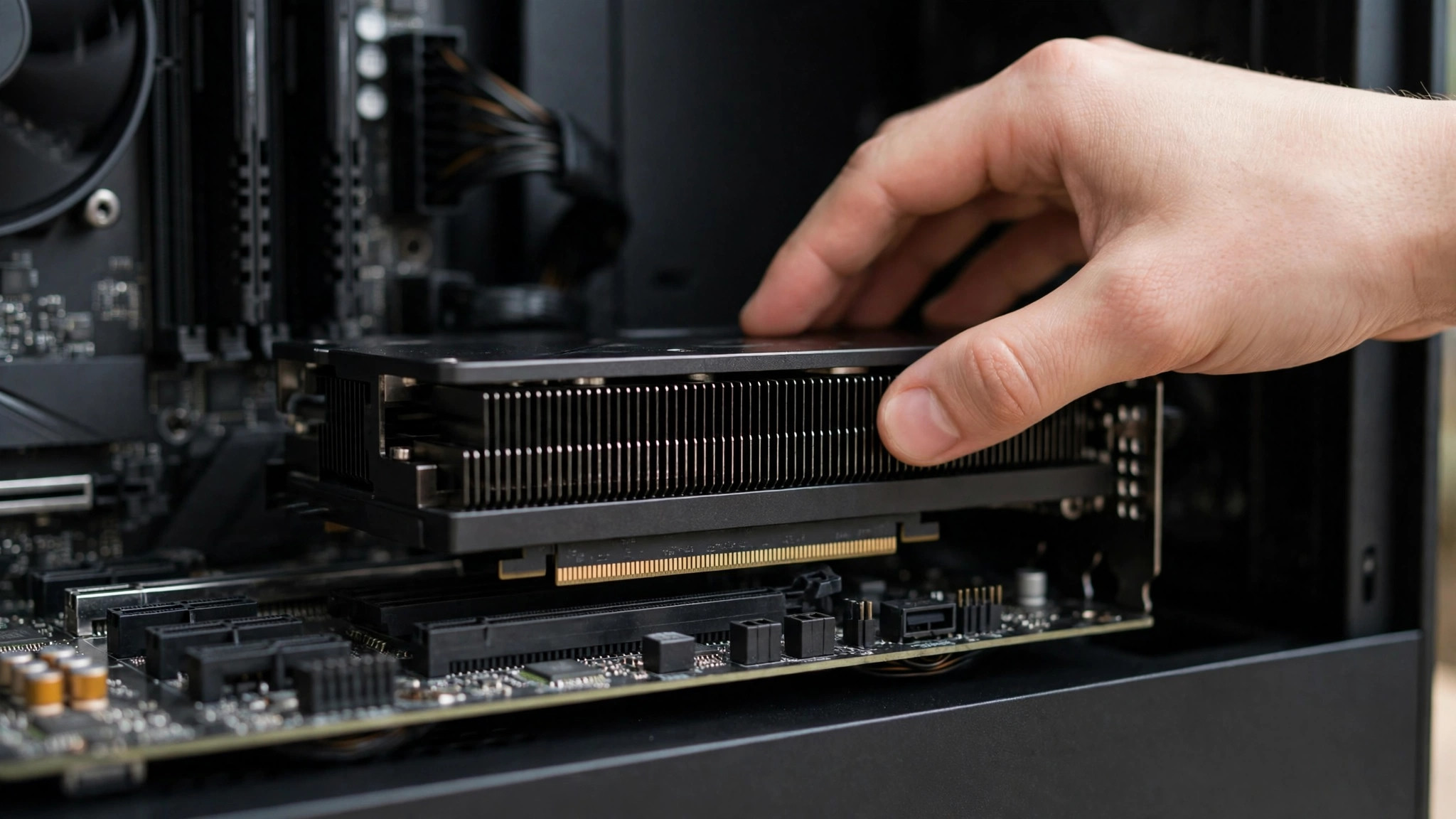
Remove the side panel and unplug the power cables from the card. Unscrew the bracket screws that hold the card to the case, then press the small retention clip at the end of the PCIe slot and gently pull the card straight out. Check the slot for dust and the card’s gold connector for dirt or damage, and clean both carefully with compressed air. Then push the card firmly back into the slot until the retention clip clicks and the card sits level. Screw the bracket back in, reconnect the power cables, close the case, and power on. If Windows now detects the card, the problem was the seating. If your motherboard has a second PCIe x16 slot, you can also try the card there, which helps you find out whether the first slot is faulty.
Fix 2: Check the BIOS and PCIe Settings
If reseating did not help, the motherboard BIOS may be the problem. Restart the PC and press the BIOS key as it boots, usually Delete or F2. Look for the settings that control graphics: on many boards this is under Advanced, then System Agent or NB Configuration, and it is called Primary Display or Initial Display Output. Make sure it is set to PCIe or PEG, not to integrated graphics or Auto if Auto is causing trouble. While you are there, check that the PCIe slot is set to the correct generation. A slot forced to PCIe Gen 1 or Gen 2 can cause detection problems with newer cards, so set it to Auto or the highest generation your board and card support. Also check whether your motherboard has a BIOS update available. Manufacturers release updates that add support for new graphics cards, and an old BIOS can fail to detect a new card entirely. Updating the BIOS carries some risk, so follow the motherboard maker’s instructions exactly and do not turn the PC off during the update.
Fix 3: Reinstall or Update the GPU Drivers
If Windows can see the card but shows a warning, or if the card vanished right after a driver update, the driver is the most likely culprit. A corrupted or half-installed driver can stop Windows from starting the device at all. The fix is a clean reinstall, not just an update over the top. First, open Device Manager, right-click the graphics card under Display adapters, and choose Uninstall device. If the option appears, tick the box to delete the driver software for the device. Restart the PC, then install a fresh driver from the official source: NVIDIA for GeForce cards, AMD for Radeon cards, or Intel for Arc cards. For a deeper clean, use Display Driver Uninstaller (DDU) from Guru3D. DDU removes every trace of the old driver, including registry entries and leftover files, and it is the tool professionals reach for when a normal reinstall does not work. Run it in Safe Mode, choose Clean and Restart, then install the new driver. Our guide to updating GPU drivers safely walks through the whole process, including how to avoid the common mistakes that cause driver problems in the first place.
Fix 4: Check Windows Update and Chipset Drivers
Sometimes the problem is not the graphics driver but the system around it. Open Settings, go to Windows Update, and install any pending updates, because Microsoft regularly ships fixes that affect hardware detection. Then check your motherboard chipset drivers. The chipset driver helps Windows talk to the PCIe slots, and an old or missing chipset driver can stop a graphics card from being detected, especially after a fresh Windows install. Download the latest chipset driver from your motherboard maker’s website, install it, and restart. While you are there, check that Windows has not installed a generic driver over your real one: in Device Manager, if the card shows as Microsoft Basic Display Adapter, Windows has no proper driver at all, and installing the manufacturer’s driver should fix it.
Fix 5: Check the Power Supply
A graphics card that does not get enough power may not be detected at all. Check that your power supply meets the card’s minimum wattage. A high-end card on a 450W power supply is a common cause of detection problems and crashes. If you recently upgraded to a more powerful card without upgrading the power supply, that is very likely the issue. Also check the power cables themselves. A damaged or very old PCIe cable can fail to deliver stable power. If your power supply is modular, make sure the cables are plugged firmly into both the power supply and the card. If you have a spare power supply or a friend’s PC you can test with, swapping the power supply is the fastest way to confirm whether it is the problem.
Fix 6: Test the Card in Another Slot or Another PC
If nothing so far has worked, you need to find out whether the problem is the card or the rest of the system. The fastest way is to test the card in another PC. If it is detected there, your card is fine and the problem is in your motherboard, power supply, or Windows installation. If it is not detected in a second PC either, the card itself is very likely faulty. If you do not have a second PC, try the card in a different PCIe slot on your own motherboard. A damaged primary slot can make a good card invisible. Also try a different monitor cable and a different monitor, because a faulty cable can occasionally cause strange detection behaviour. Once the card is detected again, run a benchmark to make sure it is performing properly. Our guide on how to test GPU performance and benchmark it correctly shows how to confirm the card is healthy, not just present.
When the GPU Is Detected but Shows an Error (Code 43)
Error Code 43 in Device Manager means Windows has stopped the device because it reported a problem. This is one of the most common GPU errors, and it is usually a driver or power issue rather than a dead card. Start with a clean driver reinstall using DDU as described in Fix 3. If that does not work, check the power cables again and try a different power supply if you can. Code 43 can also appear after a Windows update that installed the wrong driver, so rolling back the driver is worth trying: right-click the card in Device Manager, choose Properties, go to the Driver tab, and click Roll Back Driver if the button is available. If Code 43 persists across a clean driver install, a different slot, and a different power supply, the card’s hardware is likely failing.
How to Tell If Your GPU Is Dead
Not every missing GPU can be saved. These signs point to a hardware failure rather than a settings problem. The card’s fans do not spin at all when the PC starts, and the card gets no power even with known-good cables. The card is not detected in any PC or in any PCIe slot. The card shows artefacts, such as strange colours or shapes, whenever it is detected. The card causes the PC to shut down immediately when it is under load. If you see several of these signs together, and you have already tried reseating, a clean driver install, and a different power supply, the card has probably failed. Check whether it is still under warranty before you buy a replacement, because most graphics cards carry a two to three year warranty, and manufacturers will often repair or replace a card that has died through no fault of yours. While you wait, you can still use the PC on integrated graphics, and you can check how to check GPU VRAM usage while gaming later to make sure your replacement card has enough memory for your games.
Conclusion
A GPU that is not detected in Windows feels like a disaster, but in most cases it is a simple fix. Start with the basics: plug the monitor into the graphics card, check the power cables, and look in Device Manager to see what Windows can find. Reseat the card, check the BIOS settings, and do a clean driver reinstall with DDU. Those steps solve the large majority of cases. If the card still does not appear, test it in another slot or another PC to find out whether the card or the system is at fault. Work through the steps in order, and you will either have your graphics card back or know for certain that it needs replacing.
FAQs
Why is my GPU not detected after a Windows update?
Windows updates sometimes install a generic display driver or replace your graphics driver with an incompatible version. Open Device Manager, check for a warning on the card, and do a clean reinstall of the manufacturer’s driver using DDU. If that fails, roll back the driver from the Driver tab in the card’s properties.
How do I know if my graphics card is detected?
Press Win+X and open Device Manager, then expand Display adapters. Your graphics card should be listed by its proper name. You can also open Task Manager, go to the Performance tab, and look for the GPU entry, which shows the card’s name and memory. If you only see Microsoft Basic Display Adapter, Windows is not detecting your card.
Can a BIOS update fix a GPU that is not detected?
Yes, in some cases. Motherboard makers release BIOS updates that add support for newer graphics cards, and an old BIOS may fail to detect a new card. Check your motherboard maker’s website for updates, and follow their instructions exactly. Do not turn the PC off during a BIOS update.
Why is my GPU detected but my games use integrated graphics?
This usually means your monitor is plugged into the motherboard instead of the graphics card, or Windows is set to use the integrated GPU for that game. Plug the monitor into the graphics card first. Then go to Windows Settings, Display, Graphics, and set your games to use the High performance GPU.
Should I replace my GPU if it is not detected?
Not before testing it properly. Reseat the card, try a different PCIe slot, do a clean driver reinstall, and if possible test the card in another PC. Only consider replacing the card if it is not detected in any system and you have ruled out the power supply and the motherboard. Check the warranty first, because a failed card may be repaired or replaced for free.
Henry is the founder and writer behind GPUGuides, based in Los Angeles, California, USA. He writes practical, step-by-step GPU guides in plain English to help gamers and PC owners get the best out of their graphics cards.


One thought on “Why Is My GPU Not Detected in Windows and How to Fix It”