

A graphics card does not often die in one day. It usually gives small warnings first. A game that ran fine last month starts to show strange colors. The screen goes black for a second, then comes back. The fans get loud for no clear reason. If you know how to tell if your GPU is dying, you can act before the card stops working in the middle of a game or a work task.
This guide explains the most common signs of a failing graphics card in plain words. You will learn what each sign means, what else can cause the same problem, and how to test the card step by step at home. You do not need special tools for most of the tests. You need time, care, and a clear way to write down what you see.
Read the signs in order. One odd event is often a driver bug or a hot day. A pattern is different. When two or three signs show up together and they keep coming back, the card needs a closer look. The tests near the end of this guide will help you tell if the card is the cause.
What a Dying GPU Means
A GPU, or graphics processing unit, is the chip that draws the picture on your screen. It works with memory chips, fans, and power parts on the same card. When one part starts to fail, the picture is often the first thing that changes. That is why most signs show up on the screen first.
Cards can fail for many reasons. Heat over years can wear down the parts. A power surge can hurt the card in one moment. Dust can block the fans and trap heat. A card that was used hard for long gaming sessions may wear out sooner. Age alone is a factor too. Most cards last for years, but no card lasts forever.
How Long a Graphics Card Normally Lasts
Most graphics cards last five to eight years with normal use. Some last longer. The fans are often the first part to wear out, and a fan can be replaced on many cards. The chip and the memory are harder to fix. If a card is still under warranty, the maker may repair or replace it. Keep your receipt and note the date you bought the card.
A card does not need to be old to fail. A new card can have a fault from the factory. That is why the tests in this guide matter for new cards too. If a new card shows the same signs, stop and check the warranty first. Do not open the card or change its parts if that could void the warranty.
The Early Signs You Should Not Ignore
The signs below are the ones people see most often. One sign on its own may have a simple cause. A few signs together point to a card that is wearing out. Write down when each sign happens and what you were doing at the time. That note will help you later, and it will help a repair shop too.
Visual Artifacts and Strange Colors
Visual artifacts are wrong shapes, colors, or patterns on the screen. You may see small colored dots, thin lines, blocks of color, or a checkerboard pattern. A game texture may flicker or turn into a strange shape. The menu may look fine while the game looks broken. These faults are often called artifacts.
Artifacts that appear in many games and in normal desktop use are a stronger warning than artifacts in one game only. If one game shows a glitch, the game files or a game setting may be at fault. If the glitch shows up in games, videos, and on the desktop, the card or its driver is more likely to be the cause. Our guide on how to fix GPU artifacting explains each type of glitch and the fixes to try first.
Flicker, Tearing, and Freezing
A screen that flickers, tears, or freezes for a few seconds can point to a card problem. Tearing is when the top and bottom of the picture do not line up for a moment. Freezing is when the picture stops and the sound keeps going, or the whole PC stops for a few seconds. A short freeze once in a while may be a driver issue. Freezes that happen every day need a closer look.
Watch when the freeze happens. Does it happen only in one game, or in any game that pushes the card hard? Does it happen when the card gets hot? The answers help you split a software problem from a hardware problem. Keep a short note of the game, the settings, and the time.
Driver Crashes and TDR Errors
A driver crash is when the graphics driver stops working and Windows tries to restart it. You may see a message that says the display driver stopped responding and has recovered. This event is called a TDR, which stands for Timeout Detection and Recovery. Windows uses it to stop a full crash when the card does not answer in time.
One TDR after a driver update is often a software problem. The new driver may have a bug, or old driver files may still be on the PC. A clean driver install often fixes it. TDR errors that happen every day, in many games, and after a clean install are a stronger warning. They can mean the chip or the memory is no longer stable at normal speed.
What a TDR Error Tells You
A TDR tells you that Windows lost contact with the card for a short time. It does not tell you why. Heat, a bad driver, a weak power supply, and failing hardware can all cause it. That is why you need to test one cause at a time. Change the driver first, then check the heat, then check the power. If the TDR errors stay after each fix, the card itself is the likely cause.
Write down how often the crashes happen. Do they happen after ten minutes of play, or only after two hours? Do they happen on the desktop, or only in games? A crash that comes faster as the card warms up points to heat or to hardware that is no longer stable. A crash that comes at once, even when the card is cold, points more to a driver or a power problem.
Black Screens and No Display
A black screen is one of the most worrying signs. The PC may still be on, and you may hear the fans, but the screen shows nothing. Sometimes the screen goes black for a second and comes back. Sometimes it stays black until you restart the PC. Sometimes the PC will not show a picture at all when you turn it on.
Start with the simple causes. Check that the cable is pushed in at both ends. Try a different port on the card and a different port on the monitor. Try a different cable. If the screen works with a different cable, the cable was the problem. If you have a second monitor or a TV, try that too. A fault that follows the card to a second screen is more likely to be inside the PC.
When a Black Screen Is Serious
A black screen that happens in games and gets more common over weeks is a serious sign. It is more serious if the PC also needs a hard restart, or if the fans spin up to full speed when the screen goes black. Those signs can mean the card lost power or the chip stopped working. Our guide on how to fix a GPU driver crash and black screen in Windows 11 walks through the driver and display checks to try first.
If the PC shows no picture at all, even on the start up screen, try the monitor on a different PC or a laptop if you can. If the monitor works there, the fault is in the first PC. If the PC has built in graphics on the CPU, you can also plug the monitor into the motherboard port and see if a picture appears. If it does, the graphics card is the part to test next.
Heat, Noise, and Falling Performance
Heat is both a cause and a sign of trouble. A card that runs hot will slow itself down to protect the chip. That is called throttling. You will see lower frame rates in games that used to run well. The fans will spin faster and louder to try to cool the card. If the heat stays high, the card may crash or show artifacts.
Normal temperatures depend on the card and the game. Many cards run between 65 and 85 degrees Celsius while gaming. A card that often goes above 90 degrees needs attention. Check what temperature should my GPU be while gaming for the safe range for your type of card, and learn how to read the temperature while you play.
Fan Noise That Is New or Getting Worse
Fans get louder when the card is hot, and that is normal during a heavy game. A new noise is different. A grinding, clicking, or rattling sound can mean a fan bearing is worn out. A fan that stops and starts, or a fan that does not spin at all, can also cause heat to build up. Listen with the case open for a short test, but keep your hands and loose clothes away from the fans.
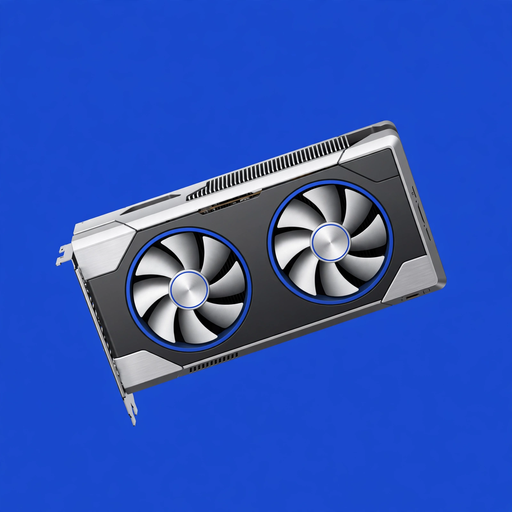
Dust is the most common cause of extra heat and noise. Dust blocks the fins and the fans, so air cannot flow through the card. The picture below shows how dust can build up inside a card. A careful clean can bring the temperature down by a large amount. If cleaning does not help, and the temperature stays high, the thermal paste or the fan may need to be checked by a repair shop.

Performance That Keeps Falling
A card that is dying often gets slower over time. Games that ran at 60 frames per second now run at 40, even with the same settings. The frame rate may drop in sudden steps, or the game may stutter for a second and then catch up. Stutter is a short pause that breaks the smooth flow of the game.
First, rule out the simple causes. A new game update, a driver update, or a background app can lower performance. Test with the same game and the same settings you used before, and close other apps. If the drop stays after a clean driver install and a clean, and it shows up in more than one game, the card may be losing its ability to run at full speed. Our guide on how to test GPU performance shows how to measure the change with a fair test.
How to Test Your GPU Step by Step
Testing in order saves time and money. Start with the free checks that take minutes. Move to the deeper tests only if the early ones do not give a clear answer. This is the part of the guide that shows how to tell if your GPU is dying with tests you can do at home. Write down the result of each test.
Step 1: Take the Screenshot Test
Press Windows plus Print Screen when a glitch is on the screen. This saves a picture of what the card sends to Windows. Open the picture on the same PC, and then on a phone or a second PC if you can.
- If the glitch is in the screenshot, the fault is inside the PC. The card, the driver, or the game may be at fault.
- If the glitch is not in the screenshot, the fault is outside the PC. The cable, the monitor, or the port may be at fault.
- If the screenshot looks clean but the screen shows the glitch, try a different cable and a different monitor next.
Step 2: Swap the Cable and the Monitor
Try a different video cable, and try a different port on the card and on the monitor. If you were using HDMI, try DisplayPort if your monitor has it. If you have a TV, plug the PC into the TV for a short test. If the problem goes away on the second screen, the first monitor or cable was the cause.
Step 3: Clean the Card and Check the Fans
Turn the PC off and unplug it. Open the side panel and look at the card. Use short bursts of compressed air to blow dust out of the fins and the fans. Hold a fan still with a finger while you blow air near it, so it does not spin too fast. Check that all the fans spin when the PC is back on and the card gets warm.
Test the card again after the clean. If the temperature falls and the glitches stop, heat and dust were the cause. Our guide on how to fix GPU overheating while gaming step by step covers the cleaning steps in full detail.
Step 4: Do a Clean Driver Install
Download the latest driver from the official site for your card brand. Use the NVIDIA drivers page, the AMD drivers page, or the Intel driver page for your card. Then remove the old driver with a clean install. You can use the clean install option in the driver installer, or use a driver removal tool in Safe Mode for a deeper clean.
Restart the PC after the install, and test the same game that showed the problem. If the crashes stop, the old driver was the cause. If they stay, keep testing. Do not install a driver from a random site. Use only the official pages, so you know the file is safe.
Step 5: Run a Short Stress Test
A stress test pushes the card hard for a short time. Use a free tool such as FurMark or 3DMark, and watch the temperature with a free tool such as GPU-Z from TechPowerUp. Run the test for 10 to 15 minutes, and watch the screen for artifacts, freezes, or a crash.
Stop the test at once if the temperature goes above 95 degrees Celsius, or if you smell burning, or if the PC shuts down. A card that passes a short stress test at a safe temperature is more likely to be healthy. A card that crashes in the first few minutes, even when it is not very hot, needs a closer look.
Step 6: Check the Power Supply
A weak power supply can cause the same signs as a dying card. Check that the power cables are pushed into the card until they click. Make sure the cables come from the power supply, not from a cheap adapter. If your power supply is old, or if it is below the wattage the card maker asks for, it may not give the card enough power under load.
If you can, test with a known good power supply that meets the card maker needs. If the crashes stop with a stronger supply, the supply was the weak link. Do not open a power supply yourself. It holds power even when it is unplugged.
Step 7: Test the Card in Another PC
This is the strongest test you can do at home. Put the card in a second PC that you know works well, with a strong enough power supply. Install the latest driver and test the same game. If the glitches, crashes, or black screens follow the card to the second PC, the card is the cause.
If the card works fine in the second PC, the cause is in the first PC. It may be the power supply, the motherboard slot, or a driver problem in that PC. This test can save you from buying a new card you do not need.
Is It the GPU or Something Else?
Many parts can cause the same signs. Use the table below to read your results. Match what you saw in the tests to the most likely cause, then try the next step in the right hand column.
| What you see | Most likely cause | Next step |
|---|---|---|
| Glitches stop when the overclock is off | Overclock too high | Leave the card at normal speed |
| Glitches stop after a clean driver install | Bad or old driver | Keep the new driver and test for a few days |
| Glitches stop on a different cable or monitor | Cable or monitor fault | Replace the cable or the monitor |
| Temperature falls after a clean, and glitches stop | Heat and dust | Clean the card on a regular plan |
| Crashes stay in a second PC | Failing card hardware | Check the warranty and ask for a repair |
| Crashes stop with a stronger power supply | Weak power supply | Replace the power supply |
What to Do Next If Your GPU Is Dying
If the tests point to the card, do not panic. Work through the next steps in order. A warranty claim is often the best first move, and a backup of your files is the most urgent move if you use the PC for work or school.
Back Up Your Files First
Copy your photos, documents, game saves, and work files to an external drive or to cloud storage before you do more tests. A card that is failing can crash the PC at any time, and a crash during a file save can hurt a file. A backup takes an hour at most, and it can save days of work.
Check the Warranty and Ask for a Repair
Most graphics cards have a warranty of two or three years. Check the date on your receipt and the serial number on the card. The maker or the shop where you bought the card will tell you how to start a claim, which is often called an RMA. Write a short list of what you tried, with dates, and keep photos of the glitches if you have them.
Puget Systems publishes clear hardware guides that explain how makers test a card before they accept a return. You can read their guidance at Puget Systems for a sense of what a repair shop will check. Do not try to fix the chip or the memory yourself. That work needs special tools, and it can void the warranty.
Plan a Replacement
If the card is out of warranty, compare the cost of a repair with the cost of a new card. A repair may cost half the price of a new card, and it may not last. A new card will have a fresh warranty and newer features. Check that your power supply and your case can fit the new card before you buy it.
Use the time while you plan to lower the load on the old card. Turn down the game settings, cap the frame rate, and keep the card clean and cool. That may give you a few more weeks of use, but do not trust a failing card with work you cannot lose.
Conclusion
Now you know how to tell if your GPU is dying. Artifacts, driver crashes, black screens, heat, loud fans, and falling performance are the main signs. One sign on its own may have a simple cause, but a pattern of signs that keeps coming back needs action.
Work through the tests in order, from the screenshot test to the test in a second PC. Write down what you find. Back up your files, check the warranty, and plan a replacement if the card is out of warranty. A clear test result will help you spend money only on the part that is really at fault.
Frequently Asked Questions
How long does a graphics card last before it starts to fail?
Most cards last five to eight years with normal use. Fans often wear out first, and a fan can be replaced on many cards. Heat, dust, and a weak power supply can shorten the life of a card. A card can also fail early if it has a fault from the factory.
Can a dying GPU be fixed?
Some causes can be fixed, such as a bad driver, dust, a worn fan, or a loose cable. A failing chip or failing memory is much harder to fix. If the card is under warranty, ask the maker for a repair or a replacement. If it is out of warranty, a new card is often the better choice.
Is it safe to keep using a dying graphics card?
It is safe for a short test, but it is not wise to keep using it for weeks if the signs get worse. Back up your files first, lower the game settings, and keep the card cool. A failing card can crash the PC at any time, and it can shut down during work you have not saved.
Can a bad driver make a GPU look like it is dying?
Yes. A bad or old driver can cause artifacts, crashes, and black screens that look like hardware faults. Do a clean driver install from the official site for your card brand, and test the card again. If the signs stay after a clean install, the cause is more likely to be the hardware.
Does overheating always mean the GPU is dying?
No. Heat is often caused by dust, a blocked case, or a fan that is not working well. Clean the card, check the fans, and check the air flow in the case. If the temperature falls after a clean and the signs stop, heat was the cause. If the card stays hot and the signs stay, the hardware may be failing.
Henry is the founder and writer behind GPUGuides, based in Los Angeles, California, USA. He writes practical, step-by-step GPU guides in plain English to help gamers and PC owners get the best out of their graphics cards.

