
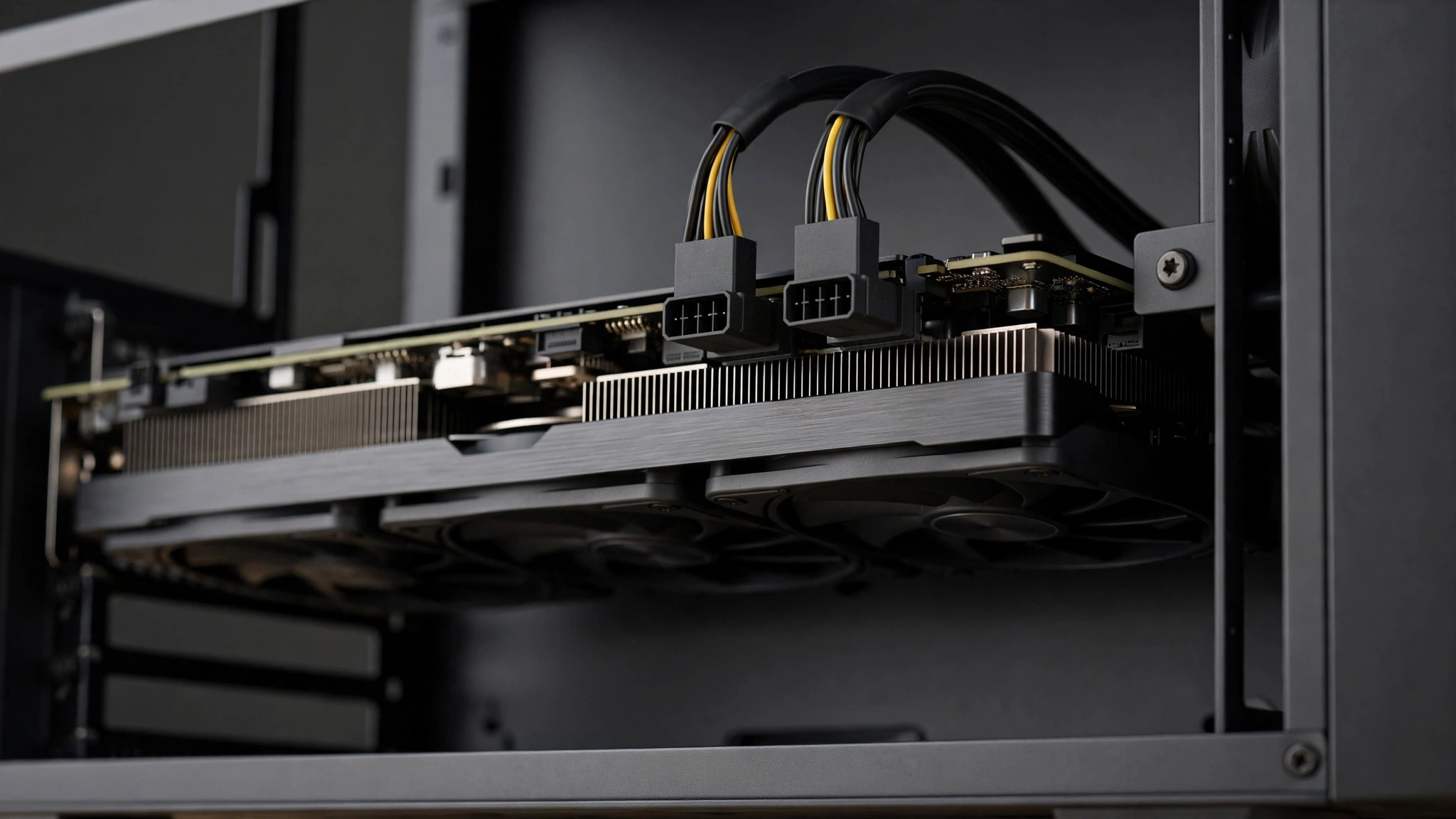
You just installed a brand new graphics card, started a game, and heard a strange high-pitched buzz or whine. It is annoying, and it can make a new PC feel broken. The good news is that this sound has a name, and in most cases it is not a sign that your card is dying. Learning how to fix coil whine on a new graphics card starts with knowing what the sound is and what causes it.
Coil whine is one of the most common complaints with new graphics cards. It shows up most often in menus and games that run at very high frame rates. In this guide, we will explain what coil whine is, how to tell it apart from fan noise, and the fixes that actually work, from simple settings changes to hardware swaps.
What Is Coil Whine?
Coil whine is a high-pitched buzzing, whining, or chirping sound that comes from the small coils inside your graphics card. These coils are part of the power delivery system. They help turn the power from your power supply into the exact voltage the graphics chip needs.
When electricity flows through a coil, the coil can vibrate at a very high frequency. That vibration makes the sound you hear. The sound changes with the load on the card, so it often gets louder or changes pitch when the frame rate changes.
What Causes Coil Whine in a New Graphics Card?
A new card can whine for a few simple reasons. First, the coils and the parts around them are brand new and have not settled in yet. Second, many new cards draw a lot of power, and high power draw makes the coils vibrate more. Third, some games push the card to hundreds or even thousands of frames per second, which is when coil whine is at its worst.
The power supply also plays a role. If the power coming into the card is not smooth, the coils have to work harder. That is why the same card can whine in one PC and stay quiet in another. In some cases, the whine even comes from the power supply itself, not the card, so it helps to listen closely to find where the sound starts.
Is Coil Whine Dangerous?
Coil whine is annoying, but it is not dangerous. It does not mean your card is broken, and it does not shorten the life of your card in any way you need to worry about. The coils are built to vibrate a little, and the sound is a side effect of normal work.
Still, a very loud whine can be a sign that something else is wrong, such as a failing power supply. If the sound comes with crashes, shutdowns, or a burning smell, stop using the PC and check your parts. That is rare, but it is worth knowing. If your PC also crashes to a black screen, our guide to fixing GPU driver crashes and black screens on Windows 11 can help you find the cause.
How to Tell If the Noise Is Coil Whine
Before you try a fix, make sure the sound is really coil whine. Fan noise and coil whine sound different, and they need different fixes. A quick check can save you a lot of time.
Listen for These Signs
- The sound is a high-pitched whine, buzz, or squeal, not a whoosh of air.
- The pitch changes when the frame rate changes, such as when you open a game menu.
- The sound stops or drops when you close the game or pause it.
- The sound comes from the graphics card itself, not from the case fans.
Coil Whine vs Fan Noise
| Sound | What it sounds like | When it happens | Likely cause |
|---|---|---|---|
| Coil whine | High whine or buzz | High frame rates and menus | Vibrating coils |
| Fan noise | Whoosh or hum | Hot card under heavy load | Spinning fans |
| Pump noise | Gurgle or rattle | Startup or air in the loop | Liquid cooler pump |
| Bearing noise | Grinding or clicking | Fan spins up | Worn fan bearing |
If you are not sure which sound you hear, run a game and cap the frame rate to 60. If the whine drops or goes away, it is almost certainly coil whine. If the sound stays the same and rises with heat, it is more likely fan noise. Our guide to fixing loud GPU fan noise while gaming covers fan problems in detail, and you can also learn how to check your GPU temperature while gaming on Windows 11 to rule out heat.
Quick Fixes You Can Try First
Start with the easy fixes. They cost nothing, take a few minutes, and solve the problem for many people. If you want to know how to fix coil whine on a new graphics card without spending money, this is where to start.
Cap Your Frame Rate
Coil whine is worst when the frame rate is very high. Many game menus run at 500 frames per second or more, and that is when the whine screams. Capping the frame rate to match your monitor is the single best first step.
If you have a 144 Hz monitor, cap the frame rate at 144. If you have a 60 Hz monitor, cap it at 60. You can set a global cap in the NVIDIA Control Panel or in AMD Software. Most games also have a frame rate limit in their own settings menu.
Cap the Frame Rate in NVIDIA Control Panel
Open NVIDIA Control Panel, go to Manage 3D Settings, and find Max Frame Rate. Turn it on and set it to your monitor’s refresh rate. This cap applies to all games, so you only have to set it once. Make sure you have the latest drivers from NVIDIA’s driver download page first, so all the settings are there.
Cap the Frame Rate in AMD Software
Open AMD Software, go to Gaming, then Graphics. Turn on Radeon Chill or set a frame rate target. Set it to your monitor’s refresh rate for the same effect. You can get the latest AMD Software from AMD’s driver download page.
Turn On VSync or Use a Frame Limiter
VSync locks the frame rate to your monitor’s refresh rate. This stops the card from rendering hundreds of extra frames that you cannot even see. Those extra frames are a common cause of coil whine in menus.
If you have a G-Sync or FreeSync monitor, you can use those instead. They match the refresh rate to the frame rate and keep the game smooth. The result is the same: the card works less hard, and the whine drops. If a game stutters after you change these settings, our guide to fixing game stuttering with a good GPU can help.
Lower the Graphics Settings
High settings at a high resolution push the card hard. Dropping a few settings can cut the power draw and quiet the coils. You do not have to play on low settings. Start with the most demanding ones, such as ray tracing and ultra shadows.
In many games, the difference between ultra and high settings is hard to see while you play. The drop in power draw, though, is real. Try high settings first and listen for a change. If you want to know more about ray tracing and what it costs in performance, read our simple guide to what ray tracing is in gaming.

Try a Different Power Cable Setup
How you connect power to the card matters. Most new cards need two or three separate 8-pin cables from the power supply. Using one cable with a daisy-chained splitter can make the power less stable, and that can make coil whine worse.
Use one separate cable for each power plug on the card when you can. If your power supply only has one cable with two plugs, try to get a second cable that fits your power supply model. Do not mix cables from different power supplies, because the plugs can look the same but wire up differently.
Deeper Fixes That Often Work
If the quick fixes did not help enough, the next steps take more time or cost money. Try them one at a time so you know which one made the difference.
Swap or Upgrade the Power Supply
The power supply is the most common hardware cause of coil whine. A cheap or old unit can feed the card noisy power, and the coils turn that noise into sound. A good quality unit with a higher wattage rating often makes the whine much quieter.
Look for a power supply from a trusted brand with an 80 Plus Gold rating or better. Make sure it has enough watts for your card, plus some headroom. A 750 W unit is a good starting point for most mid-range cards, and high-end cards may need 850 W or more.
Undervolt Your Graphics Card
Undervolting lowers the voltage the card uses while keeping the same speed. Less voltage means less power, less heat, and often less coil whine. It is safe when you do it in small steps, and it can even make the card run cooler.
You can undervolt with MSI Afterburner, which is free. Drop the voltage a little at a time, test with a game or a stress test, and stop if you see crashes. Our guide to undervolting your GPU to lower temperature without losing FPS walks through the full process step by step.
Reseat the Card and Check the Mounting
A card that is not seated well can flex, and a flexing card can make the coils vibrate more. Turn off the PC, unplug it, and take the card out. Then put it back in firmly until the latch clicks, and screw the bracket in place. If you need a refresher, our guide to installing a graphics card step by step for beginners covers the whole process.
If you have a heavy card, a small support bracket can help. It stops the card from sagging, which keeps the board straight and can reduce vibration. Many cases now come with one, or you can buy a cheap one online. While the card is out, it is also a good time to clean it. See our guide to cleaning a graphics card safely without damaging it.
Give the Card Time to Break In
Many new cards whine loudly in the first week and then get quieter on their own. The coils settle as they are used, and the sound often drops by a lot. This is one reason why some people say coil whine goes away after a few weeks.
What Does Not Fix Coil Whine
Some popular advice does not help, and some of it can damage your card. Do not put glue, nail polish, or hot glue on the coils. It can void your warranty, and it rarely stops the sound for long.
When to Return or RMA the Card
Sometimes the whine is so loud that no fix makes it bearable. If you can hear it from across the room with the case closed, or if it is louder than the fans at full speed, you may have a card that is worse than normal.
If you bought the card recently, check the store’s return window first. Many stores allow returns within 14 to 30 days. A return is usually faster than a warranty claim, and you can swap the card for another one of the same model. The new card may whine less, but there is no promise. Coil whine varies from card to card, even in the same model.
What to Check Before You Send It Back
- Record a short video of the sound so the store or maker can hear it.
- Note which games and settings cause the worst whine.
- Try the card in a friend’s PC if you can, to rule out your power supply.
- Keep the box, the receipt, and all the cables that came with the card.
Coil Whine Fixes at a Glance
| Fix | Cost | Time | How well it works |
|---|---|---|---|
| Cap the frame rate | Free | 2 minutes | Very well for most people |
| Turn on VSync | Free | 2 minutes | Very well |
| Lower graphics settings | Free | 5 minutes | Well |
| Separate power cables | Free | 10 minutes | Sometimes helps |
| Undervolt the card | Free | 30 minutes | Well |
| New power supply | $80 to $150 | 1 hour | Often helps a lot |
| Wait for break-in | Free | 2 to 4 weeks | Sometimes helps |
| Return or RMA | Free | Days | Depends on the new card |
Conclusion
Coil whine is common on new graphics cards, and it is almost never a sign of a broken card. Now you know how to fix coil whine on a new graphics card, starting with the free fixes: cap your frame rate, turn on VSync, and lower the most demanding settings. Those three steps alone fix the problem for most people.
If the whine is still too loud, check your power cables, try undervolting, and think about your power supply. Give the card a few weeks to settle in. If nothing helps and the sound is very loud, use the return window or the warranty. You paid for a new card, and you should be able to enjoy it without an annoying whine.
FAQs
Is coil whine covered by warranty?
Most makers treat coil whine as normal, so it is often not covered on its own. Some will still accept a return if the sound is very loud. It is worth asking the maker or the store, and sending a video of the sound helps your case.
Does coil whine get worse over time?
In most cases, no. Coil whine usually stays the same or gets quieter as the card breaks in. If the sound suddenly gets much louder, check your power supply and make sure the card is seated well.
Can coil whine damage my graphics card?
No. Coil whine does not damage the card. It is a side effect of the coils vibrating, and it does not affect performance or the life of the card.
Why does coil whine only happen in some games?
Coil whine depends on how much power the card draws and how fast it renders frames. Games with very high frame rates, such as simple games or game menus, push the card in a way that makes the coils vibrate the most.
Will a better power supply stop coil whine?
It can help a lot, but it is not a sure fix. A good power supply gives the card cleaner power, which often makes the whine quieter. If the coils in the card are the main source, though, a new power supply may only reduce the sound, not remove it.
Henry is the founder and writer behind GPUGuides, based in Los Angeles, California, USA. He writes practical, step-by-step GPU guides in plain English to help gamers and PC owners get the best out of their graphics cards.

